Child: Reports
Click to view full screen…
This report presents a table listing every child in the selected Quest Block(s) with their individual wellbeing scores across all six domains.
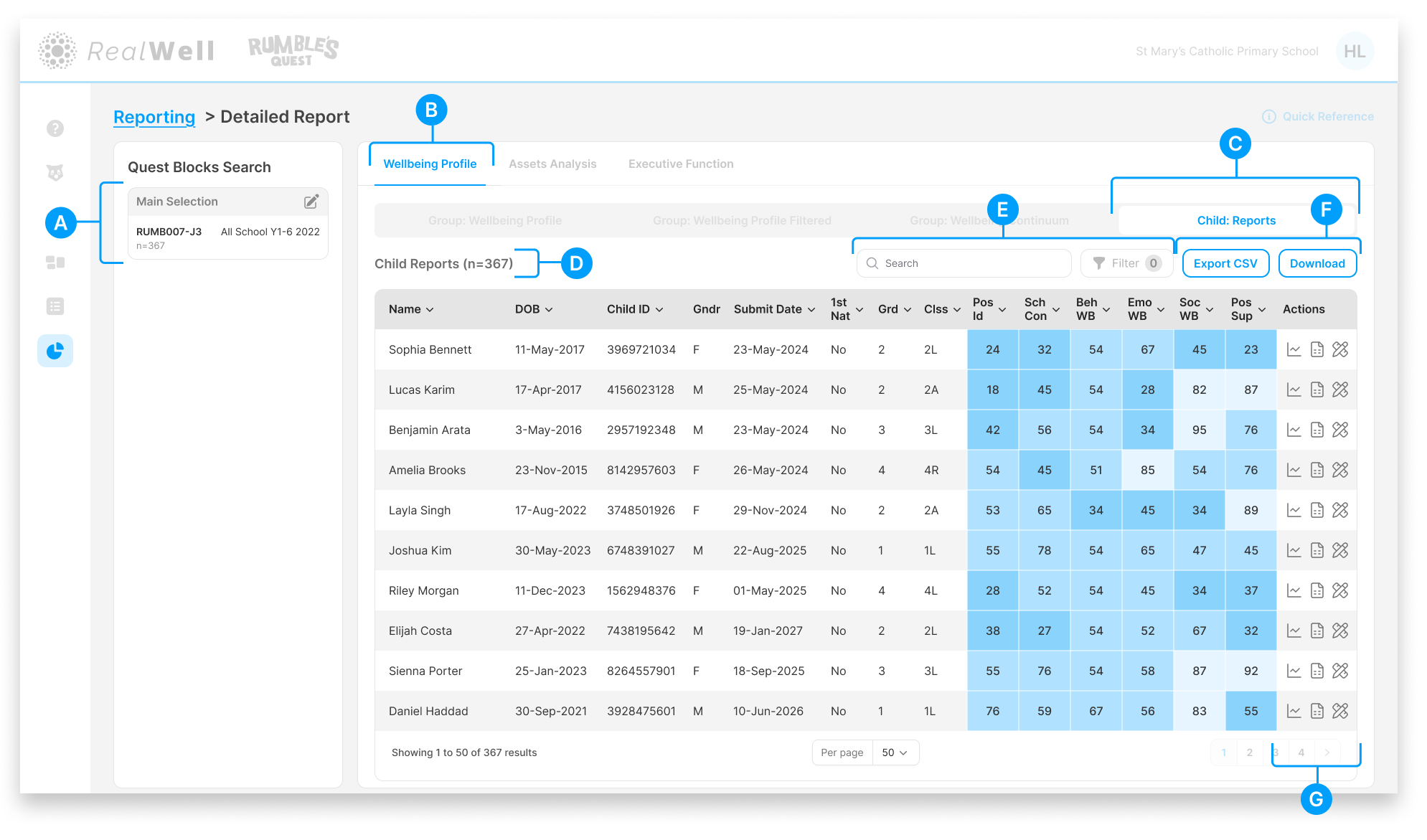
(A) Quest Blocks Search — The Quest Block(s) and sample size for this report. Your selection represents the data collection period you're reporting on.
(B) Wellbeing Profile — The active reporting group
(C) Child: Reports report tab — The active report
(D) Sample size — The number of children included, e.g. "Child Reports (n=367)"
(E) Search and Filter — Search for a specific child by name, or use the Filter to narrow results by various categories
(F) Export CSV / Download — Export the full table as a CSV spreadsheet, or download as a PDF
(G) Actions — Icons for exploring an individual child's data in more detail:
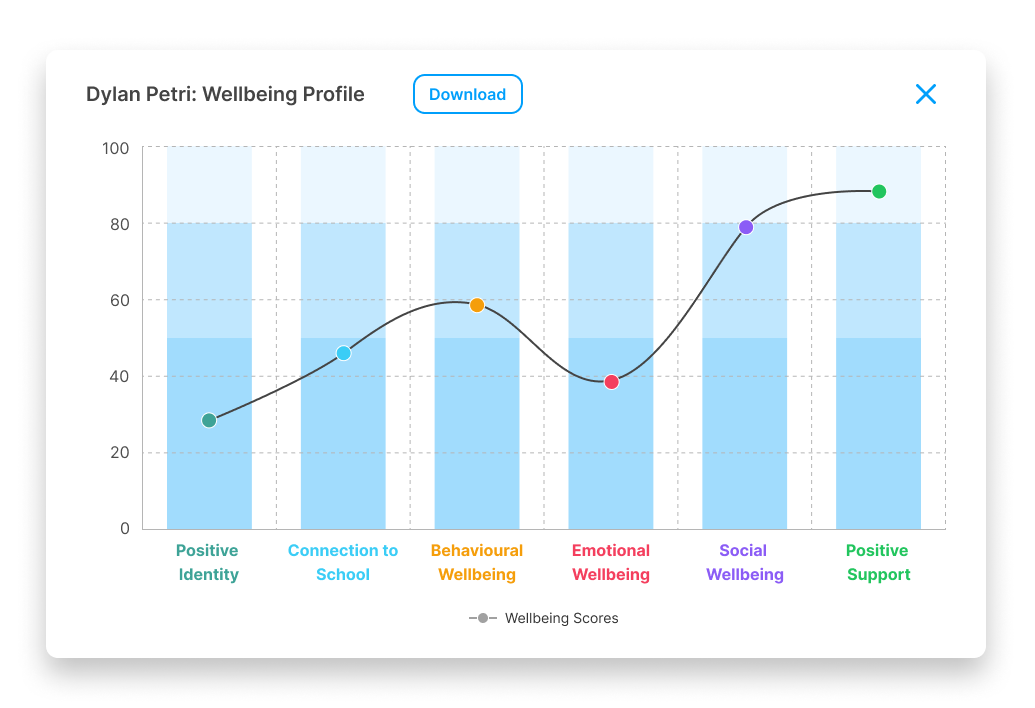
Wellbeing Profile — The child's scores plotted across all six domains
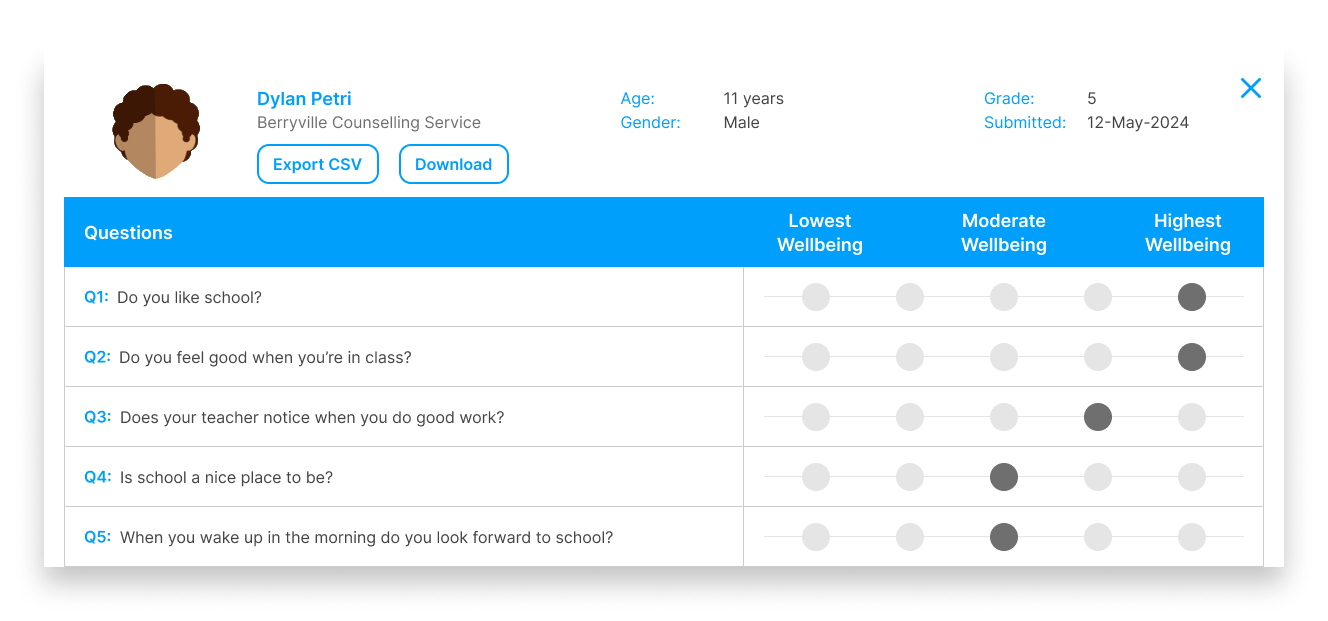
Individual Responses — The child's answers to each question (non-school organisations only)
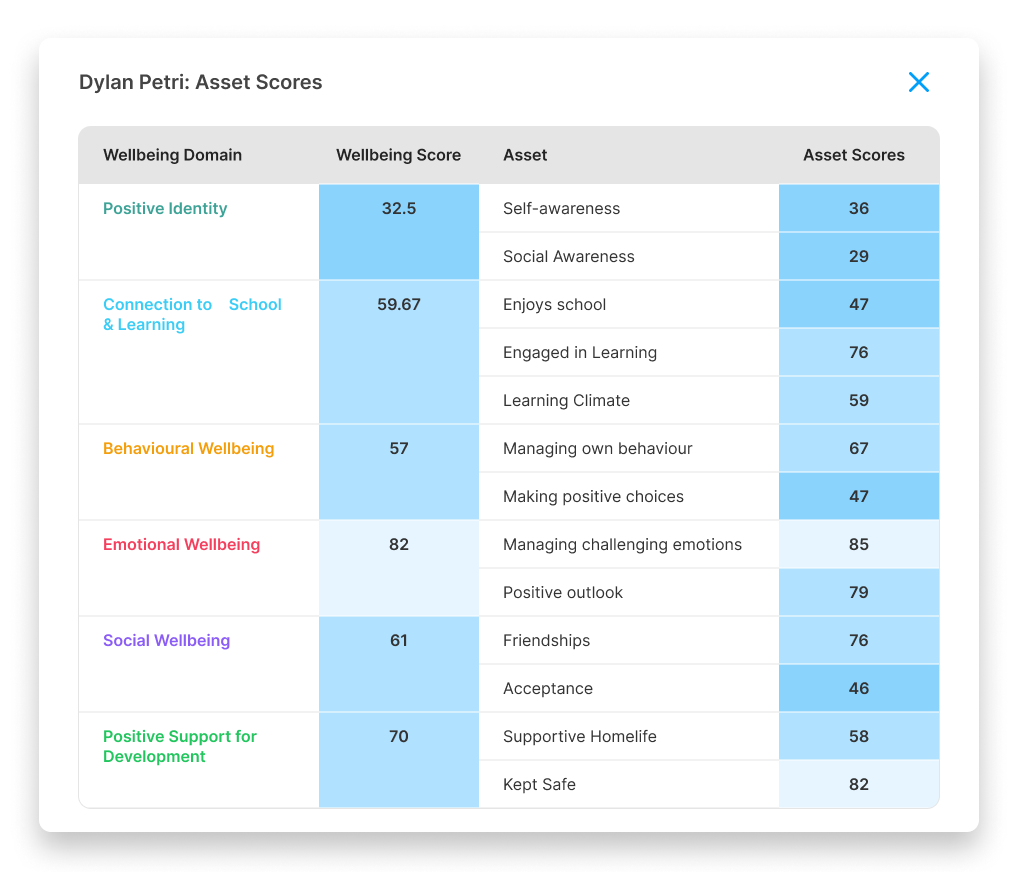
Domain and Asset Scores — The child's scores broken down by domain and underlying asset
The Table
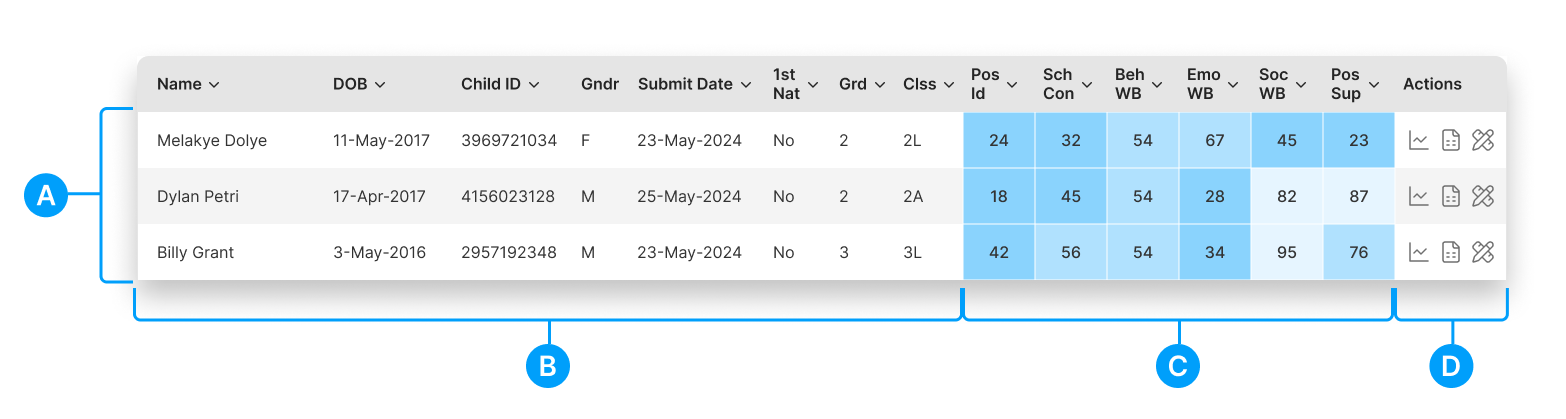
(A) Child details — Each row represents a child, listed by name
(B) Demographic columns — DOB, Child ID, Gender, Submit Date, First Nations Status, Grade, and Class
(C) Wellbeing scores — Six domain scores displayed with heat-map shading. Darker blue cells indicate lower scores, making it easy to scan for areas that may need attention.
(D) Actions — Three icons for exploring an individual child's data in more detail:
Chart icon — View the child's individual Wellbeing Profile
Notebook icon — View the child's individual responses to each question (non-school organisations only)
Pencil/ruler icon — View the child's individual domain and asset scores
Click any column header to sort the table by that column. An arrow indicates ascending or descending order.
For more detail on the individual child views available through the Actions column, see Wellbeing Profile — Child Reports.