7 - Reporting
Click to view full screen…

Once children have played Rumble's Quest and their responses have been aligned, you're ready to generate reports. Reporting is where your data comes to life, giving you insights into the wellbeing of the children in your school or organisation.
Reports are built from aligned responses, so make sure you've completed alignment before generating reports. See Align Responses if you have outstanding submissions.
The Reporting Page
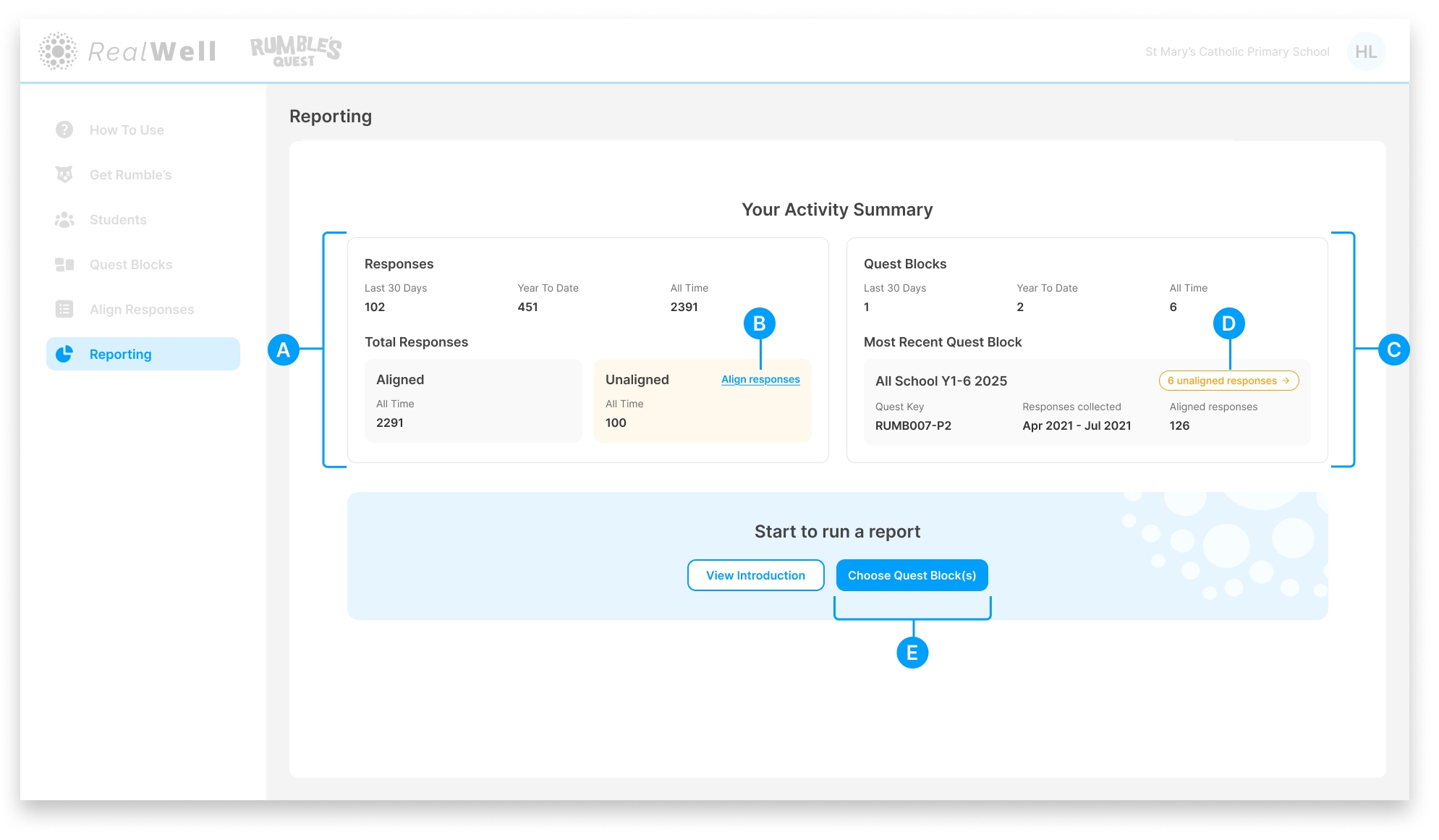
When you click Reporting in the navigation, you'll see your Activity Summary and the option to start running reports.
(A) Responses — An overview of your response activity, including Last 30 Days, Year to Date, and All Time counts, along with a breakdown of Total Responses showing Aligned and Unaligned totals
(B) Align Responses link — A shortcut to align any outstanding unaligned responses
(C) Quest Blocks — An overview of your Quest Block activity, including Last 30 Days, Year to Date, and All Time counts, plus details of your Most Recent Quest Block (Quest Key, collection period, and aligned response count)
(D) Unaligned responses link — A shortcut to align unaligned responses for the most recent Quest Block
(E) Choose Quest Block(s) — Click to select which Quest Block(s) to report on
The Activity Summary gives you a quick overview of where things stand. If you notice unaligned responses, follow the links at (B) or (D) to resolve them before generating reports.
Starting a Report
Click Choose Quest Block(s) to open the selection panel.
The panel shows all your Quest Blocks with their Quest Key, name, number of aligned responses, and the results period.
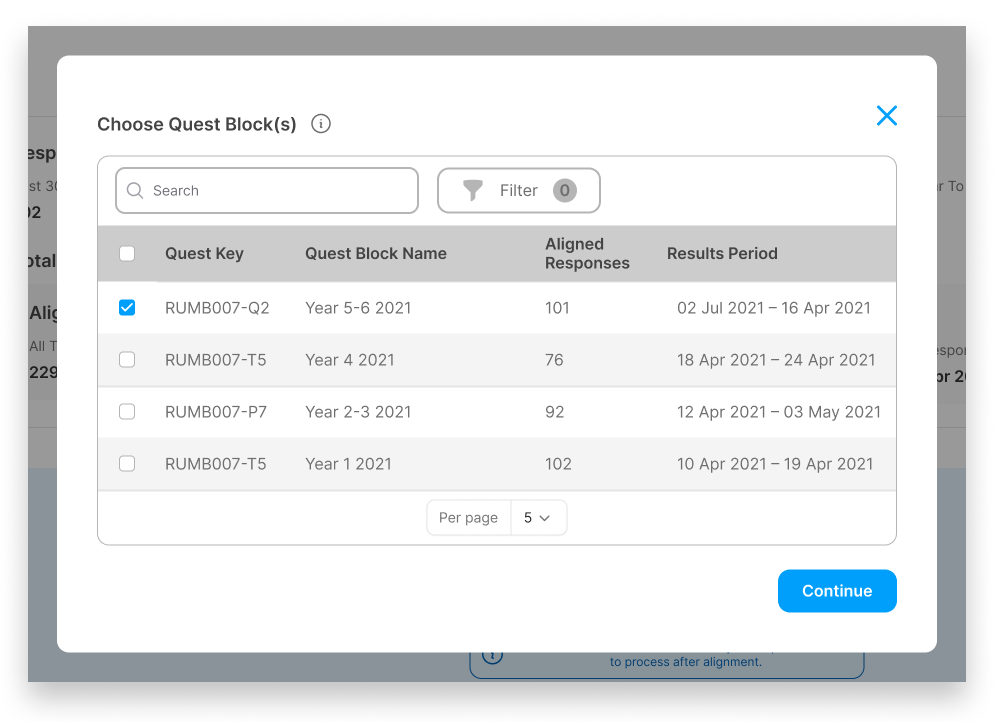
Search or filter to find the Quest Block(s) you want to report on
Select one or more Quest Blocks using the checkboxes
Click Continue
Reviewing Your Selection
After clicking Continue, you'll see a summary of your selection, including the data window and total aligned responses.
If the same child appears in more than one of the selected Quest Blocks, the system will flag this under Duplicates found. To ensure each child is only counted once in the report, choose how to handle the overlap:
Earliest results (recommended) — Keep the first result for any child with more than one
Latest results — Keep the most recent result for any child with more than one
The summary updates to show how many extra responses will be removed and how many remaining responses will be included in the report.
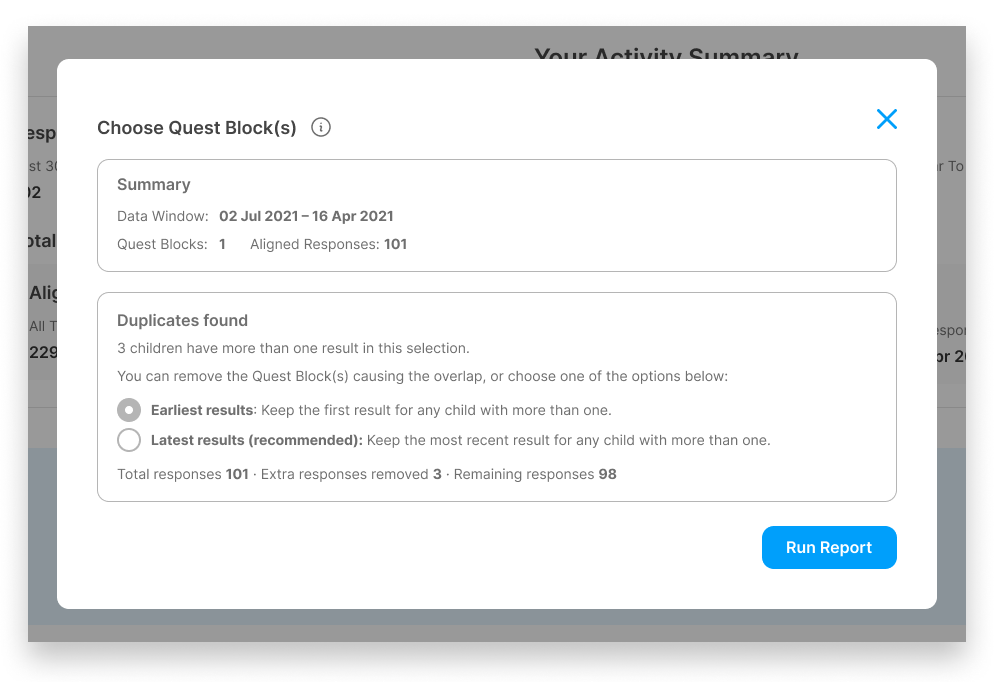
Click Run Report to generate your report based on the selected Quest Block(s).
The Report Interface
Once your report is generated, you'll see the Detailed Report view.
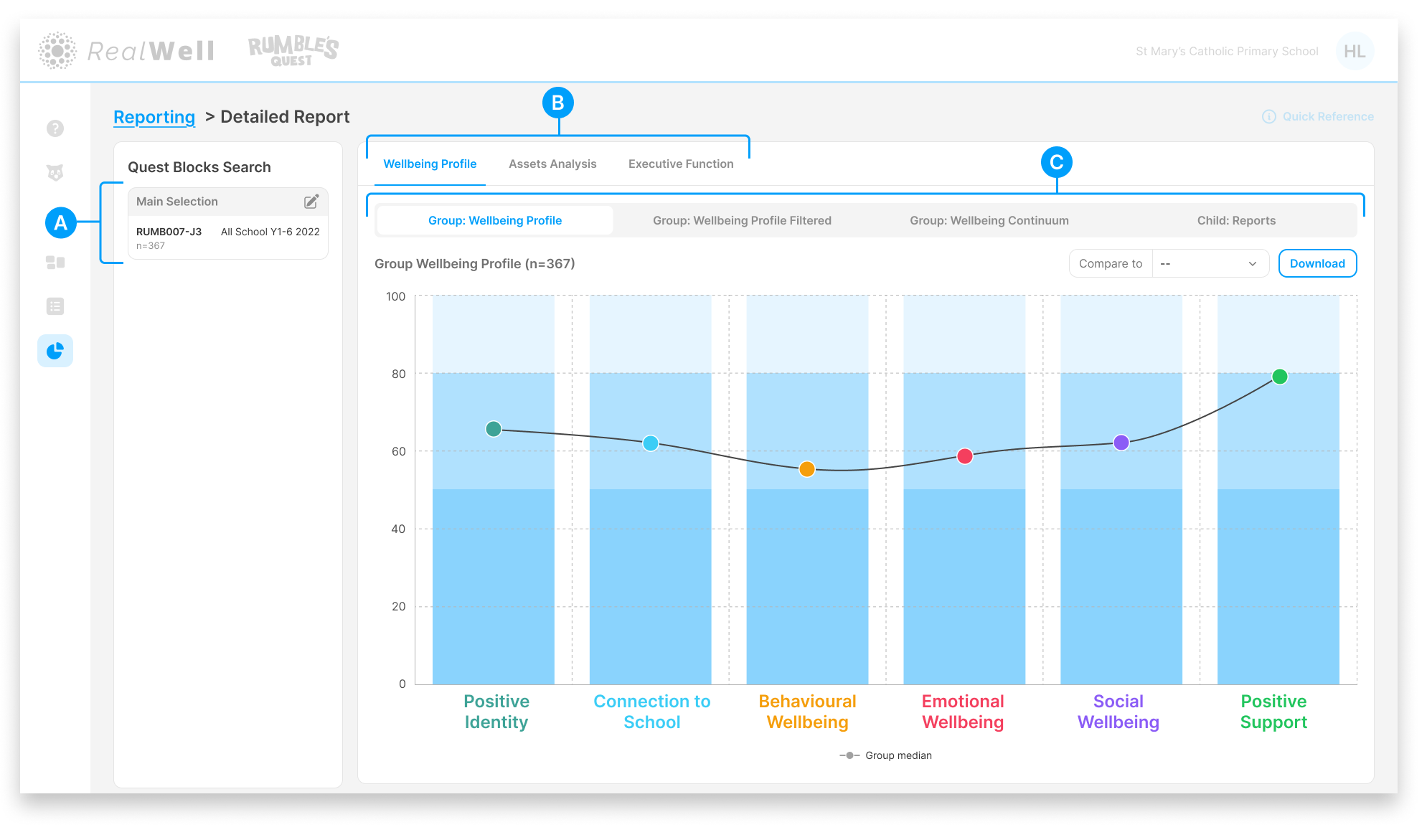
(A) Quest Blocks Search — Shows your selected Quest Block(s) and the total sample size. Click the edit icon to change your selection.
(B) Report tabs — Switch between the three report types:
Wellbeing Profile — Group wellbeing data across 6 domains, with filtering, continuum views, and individual child reports
Assets Analysis — A breakdown of 13 asset elements grouped within the 6 wellbeing domains, with question-level detail
Executive Function — Group executive function data across 5 cognitive skills, with individual child reports
(C) Sub-tabs — Each report tab has its own set of views. For example, Wellbeing Profile includes Group: Wellbeing Profile, Group: Wellbeing Profile Filtered, Group: Wellbeing Continuum, and Child: Reports.