
6 - Align Responses
Click to view full screen…

After children complete Rumble's Quest, their game responses need to be matched to their official profiles before reports can be generated. This process is called alignment.
Why Alignment Matters
When children play Rumble's Quest, they enter their own name, age, and grade. Sometimes what they enter doesn't exactly match their official record, for example, a child named "Matthew" might type "Matt" in the game.
Alignment connects each game submission to the correct child profile, ensuring:
Reports contain accurate information
Data is attributed to the right child
Duplicate submissions can be removed
The Alignment Process
When children complete a Quest Block, the system automatically aligns submissions that exactly match a child's profile. Any submissions that don't match perfectly are flagged as unaligned and need your attention.
To review alignment for a Quest Block:
Select a Quest Block – Choose which data collection round you want to review
Check for unaligned submissions – If any submissions couldn't be automatically matched, you'll need to review and align them manually
Selecting a Quest Block
When you click Align Responses in the navigation, you'll see a list of all your Quest Blocks.
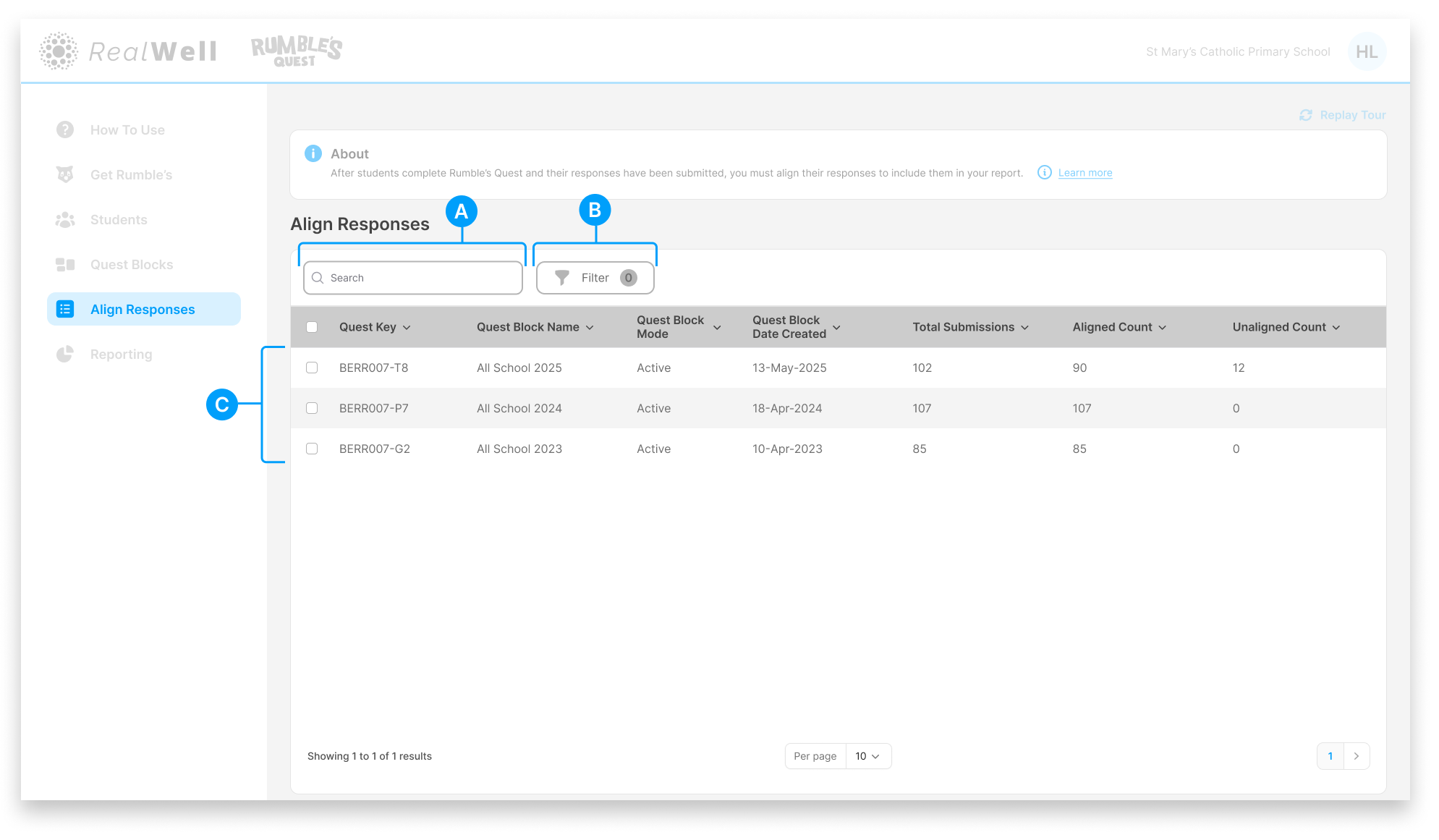
(A) Search – Find Quest Blocks by name or Quest Key
(B) Filter – Narrow results by mode or date created
(C) Quest Blocks table – Shows alignment status at a glance
You can see at a glance how many submissions are aligned vs unaligned for each Quest Block.
Click on the desired Quest Block to review its submissions and align any that need attention.
The Alignment View
When you click on a Quest Block, you'll see the alignment detail view. Submissions with high match confidence are automatically aligned. The Unaligned tab shows submissions that need your attention.
The default view is the Unaligned tab, so you can get straight to work. The Aligned tab shows submissions already matched and ready for reporting.
The Unaligned Tab
Each row represents a game submission that needs to be matched to a child profile.
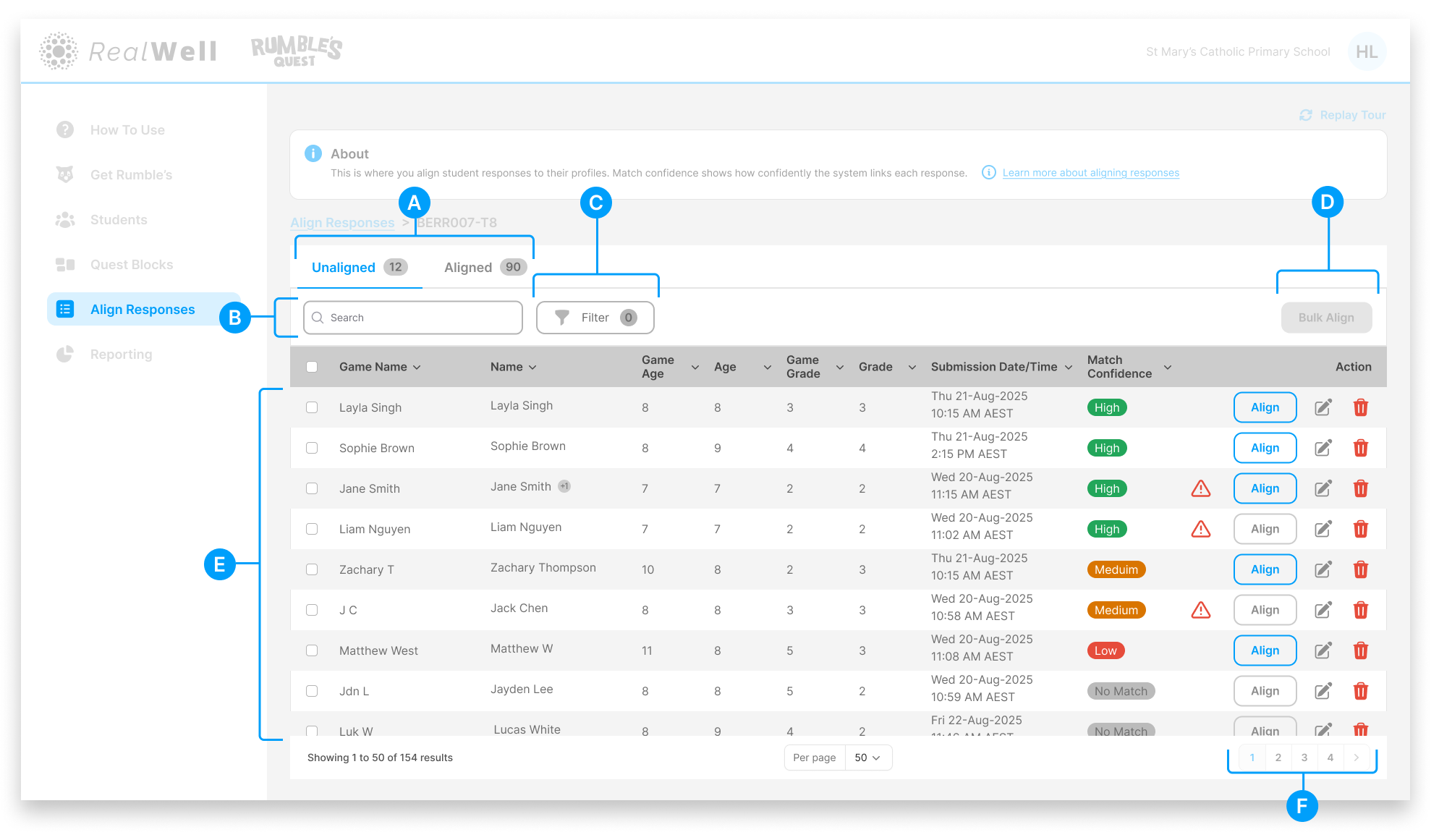
(A) Tabs – Switch between Unaligned and Aligned views
(B) Search – Find specific children by name
(C) Filter – Narrow results by criteria
(D) Bulk Align – Align multiple submissions at once. Only submissions with high match confidence and no conflicts (e.g. no duplicate submissions) are included
(E) Submissions table – List of game submissions awaiting alignment
(F) Action buttons – Align, Edit, or Delete submissions
Understanding the Table
The table shows each child's official details (Name, Age, Grade) alongside what they entered in the game (Game Name, Game Age, Game Grade). This makes it easy to spot any differences.
The Match Confidence column shows how confident the system is about each match. A green "High" badge means the system is confident it found the right child.
Warning Triangles
A warning triangle next to a row indicates that the submission needs extra attention before aligning. This typically means one of the following:
Multiple children share similar details – A +1 badge on the Game Name indicates more than one child profile matches the submission. You'll need to confirm which child the submission belongs to.
The child already has an aligned submission – The child submitted more than one response, and an earlier submission has already been aligned.
Aligning a Submission
For most submissions, alignment is straightforward:
Confirm the Name matches the Game Name
Check that the Age and Grade match
Click the Align button
When the details match, the match confidence updates to High. Click the Align button to move the submission to the Aligned tab. You can also select multiple submissions and use Bulk Align to process them together. Note that Bulk Align only processes submissions with high match confidence and no conflicts, so any selected items with lower confidence or warnings (such as duplicate submissions) will be skipped.
When a Submission Needs Extra Attention
When a row has a warning triangle, hover over it to see the reason. There are two common scenarios:
Multiple matching profiles The tooltip reads "More than one child profile was found matching the details of this response." A +1 badge on the Name column also indicates multiple matches. When you click Align, you'll need to confirm which child profile the submission belongs to. Use the Child ID and Date of Birth to verify you're matching to the correct child.
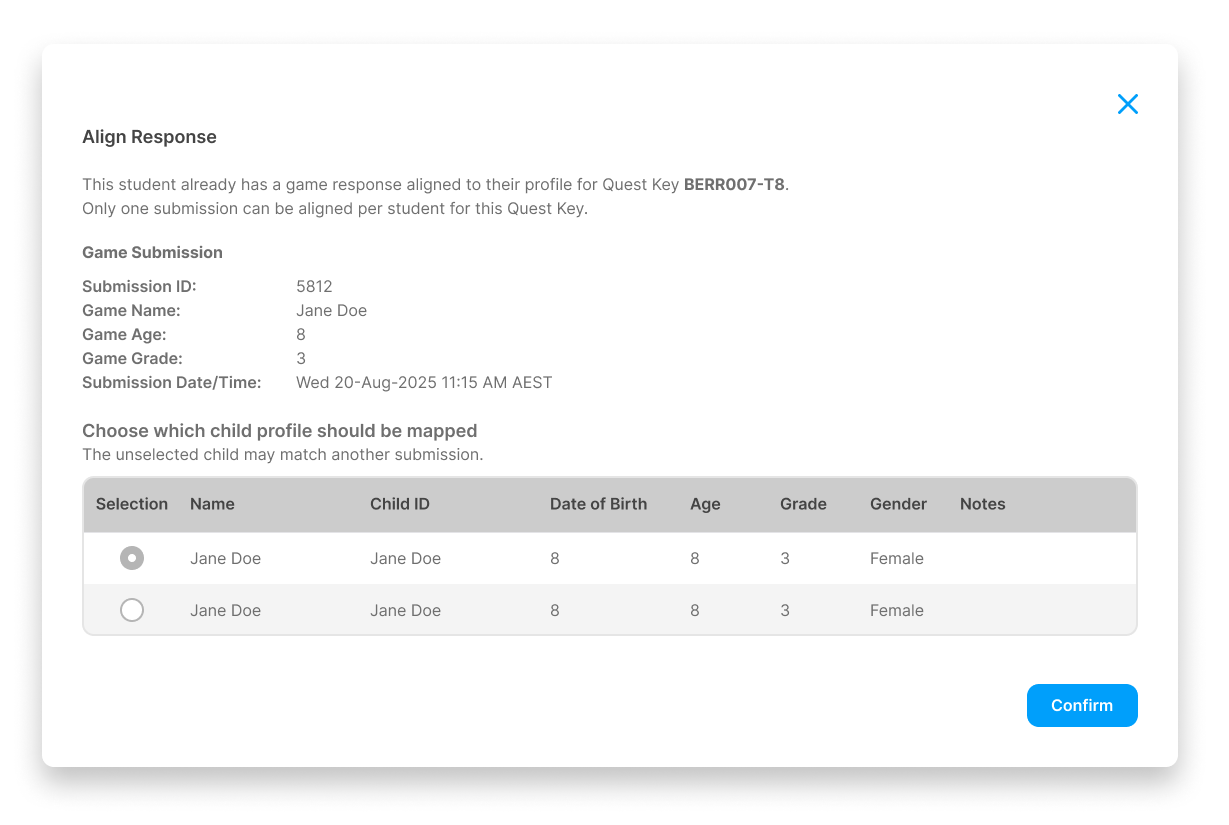
Response already mapped The tooltip reads "A response with matching details is already mapped." This means the child submitted more than one response, and an earlier submission has already been aligned. The Align button is disabled for this submission because only one response per child can be aligned to a Quest Block. To resolve this, you can either Delete the duplicate submission, or Edit the game details if the response actually belongs to a different child and then align it to the correct profile.
Editing Game Details
Sometimes you need to correct the game data before aligning. For example, if a child entered a nickname or the wrong grade.
Click the Edit icon (pencil) to open the Edit Game Details panel.
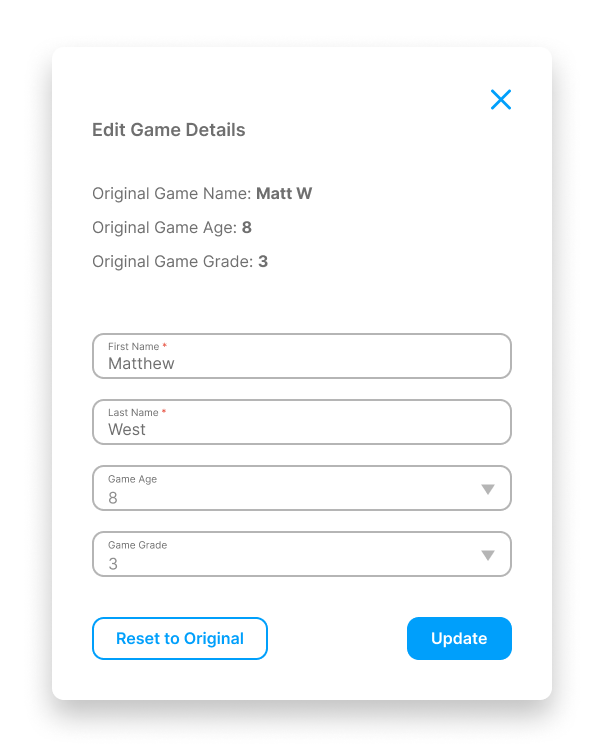
You'll see:
Original values – What the child entered (for reference)
Editable fields – First Name, Last Name, Game Age, Game Grade
Make your corrections and click Update. If you change your mind, click Reset to Original to restore the original values.
After updating, you can align the submission as normal.
Deleting Submissions
If a submission shouldn't be included in your data (for example, a test play or duplicate), click the Delete icon (trash) to remove it.
Deleted submissions cannot be recovered, so use this carefully.
The Aligned Tab
The Aligned tab shows all submissions that have been successfully matched to child profiles.
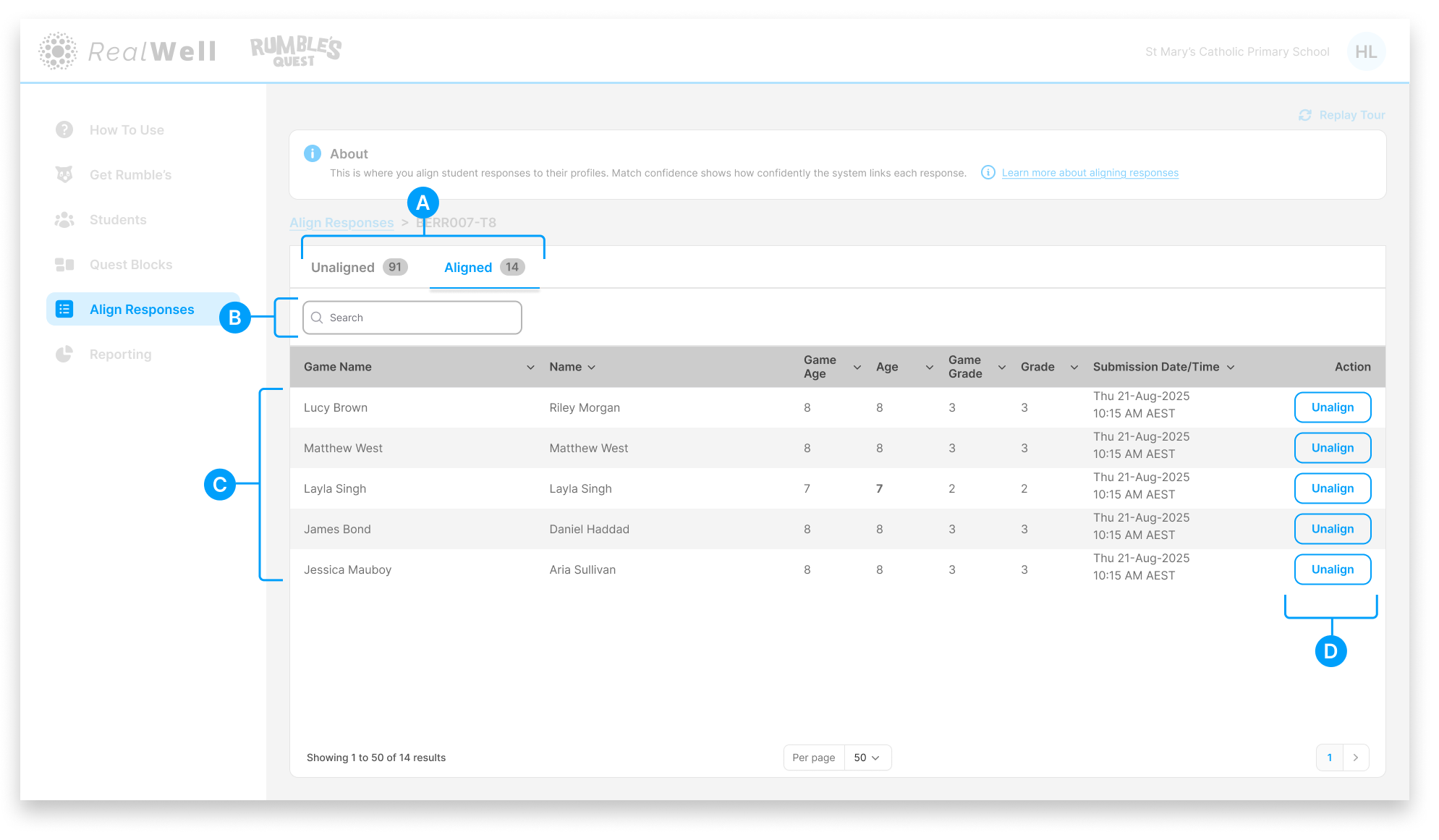
(A) Tabs – Switch between Unaligned and Aligned views
(B) Search – Find specific children
(C) Aligned submissions – List of matched submissions
(D) Action – Unalign a submission if needed
Unaligning a Submission
If you aligned a submission incorrectly, click Unalign to move it back to the Unaligned tab. You can then align it to the correct child.
Tips for Efficient Alignment
Start soon after children play – Game data can take up to 10 minutes to appear after completion
Work through systematically – Use the search and filter options to focus on specific groups
Check for warning triangles first – Children with multiple submissions need your attention to choose the right one
Use Bulk Align when available – Select your submissions and Bulk Align will process any with high confidence and no conflicts, skipping the rest
Verify mismatches – When ages or grades don't match, double-check you're aligning to the correct child