
User Management
Click to view full screen…

The Users page allows you to invite, edit, suspend, or delete users from your organisation. Use this page to control access to the RealWell platform and associated tools.
This feature is only available to Account and Recovery Admins.
View and Manage Users
This page lists all users currently associated with your organisation. You can search, filter, manage individual users.
Manage Users screen
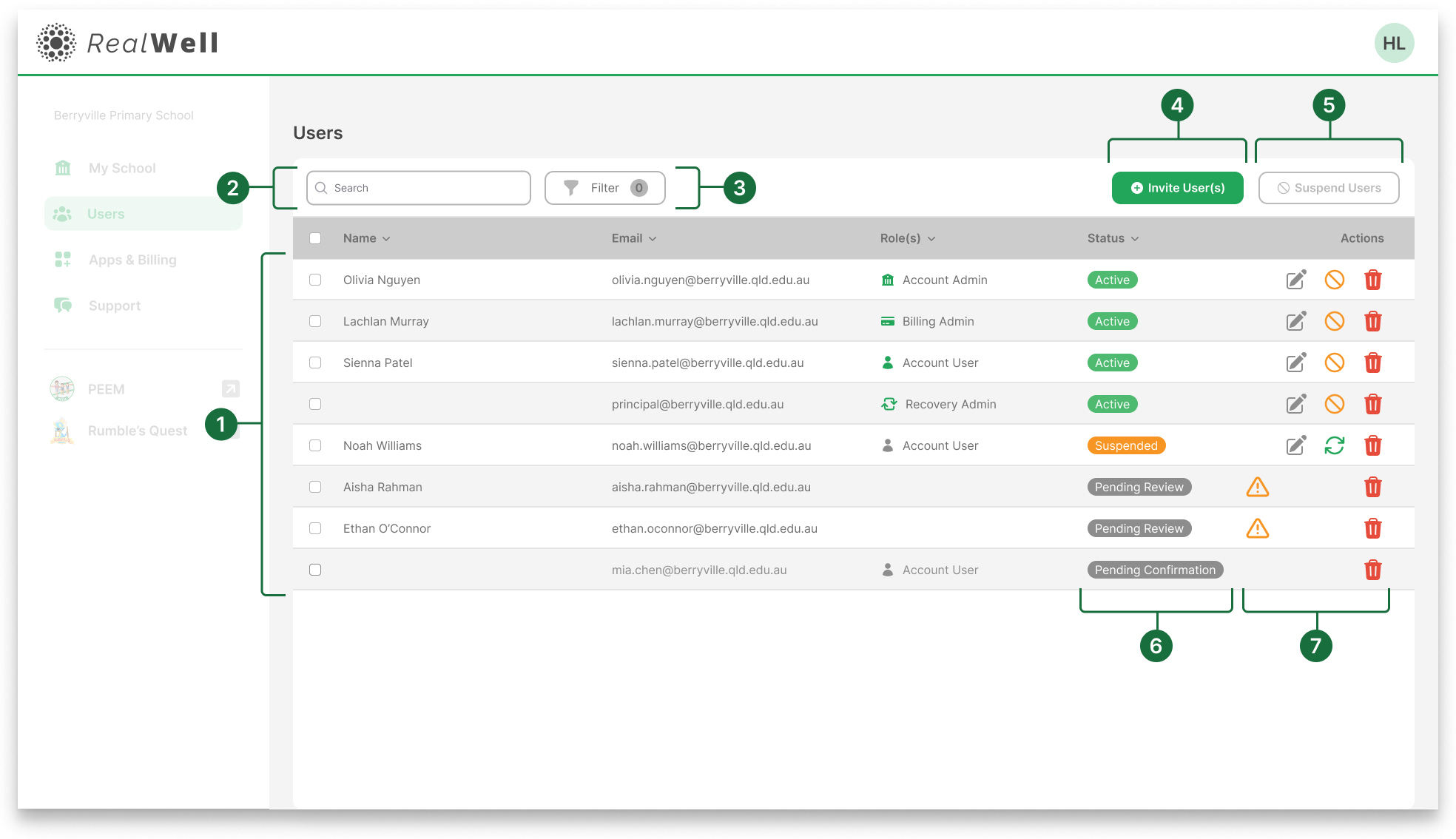
User List: Displays all users in your organisation, along with their name, email, role(s), and status.
Search: Search by name or email to find users.
Filter: Filter by user role (e.g. Account Admin, Billing Admin) or status (e.g. Active, Suspended, Pending review).
Invite User(s): Open a modal to invite one or more users by email and assign a role.
Suspend Users: Suspend multiple selected users in one action.
Status: Shows each user’s current access status.
Active: Access to the platform.
Suspended: Access has been paused.
Pending Review: Awaiting approval to join.
Pending Confirmation: Waiting for user to confirm their email address.
Actions Column
 Edit user details.
 Suspend an active user.
 Reactivate a suspended user.
 Delete a user.
 Review Access Request: Appears when a new user has requested access.
Click the warning icon to review the request.