
Invite New Users
Click to view full screen

You can invite new users to your organisation’s RealWell account by email and assign them an appropriate role.
To complete their account setup, users must accept the invitation and enter their details.
Invite Users Modal
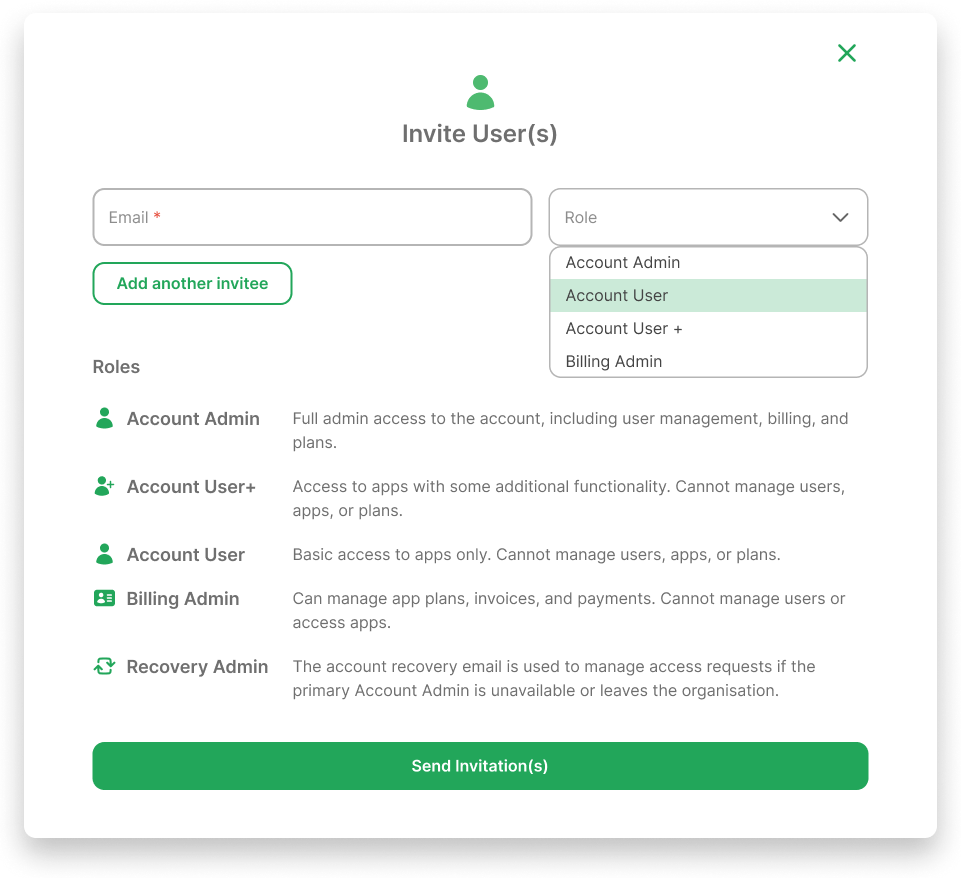
Email: Enter the user’s email address
Role: Choose the appropriate role (Account Admin, etc.)
Add another invitee: Use this to add multiple users before sending the invite
Send Invitation(s): Sends the invitation(s) to the entered email addresses
Steps
Follow these steps to invite one or more users to your account:
Click the green Invite User(s) button at the top-right of the Users screen. This opens the “Invite User(s)” modal.
In the Email field, type the email address of the person you want to invite.
From the Role dropdown, select the role you want to assign. Click Add another invitee to add more people before sending.
Role Permissions
Account Admin: Full access. Can manage users, billing, and apps.
Account User: Basic access to apps. Cannot manage users, apps or billing.
Account User+: Can access apps with some additional functions. Cannot manage users, apps or billing.
Billing Admin: Can manage billing only. Cannot access apps or manage users.
Recovery Admin: The account recovery email is used to manage access requests if the primary Account Admin is unavailable or leaves the organisation.
Once you're ready, click the green Send Invitation(s) button.
The invited users will appear in the list with a Pending Confirmation status until they accept their invite and set up their account.

Make sure you enter the correct email address. Once sent, an invitation cannot be edited.
If you make a mistake, you can delete the incorrect user from the main dashboard.