Edit Users
Click to view full screen

Use the Edit User modal to update a user’s name, email, role, or account status.
Edit User Modal
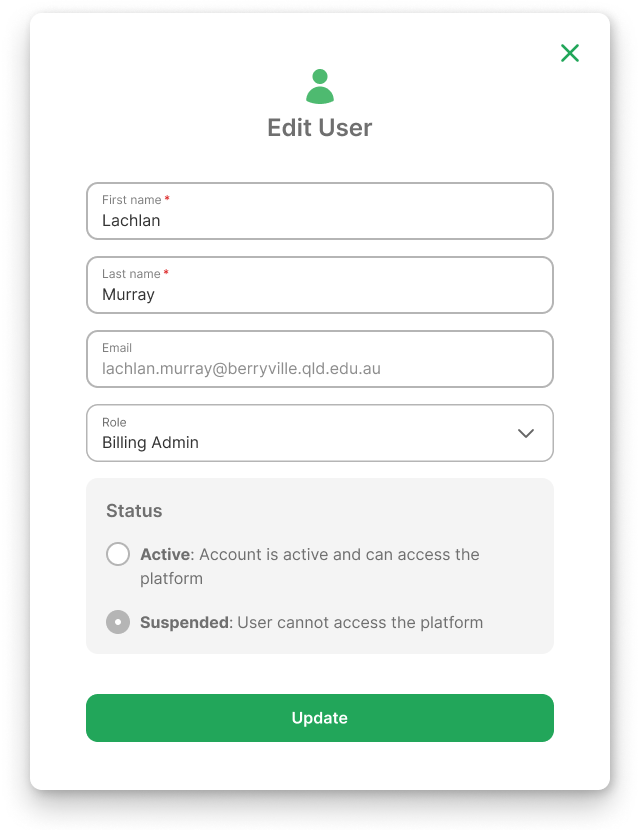
First & Last name: Update the user’s name.
Email: User’s login email address (cannot be updated).
Role: Select a different role if you need to change the user’s access level.
Status: Choose whether the user is Active (can access the platform) or Suspended (access removed).
Update: Click to save all changes made to the user’s profile.
Steps
Follow these steps to edit a user’s profile:
Click the
 Edit icon next to the user you want to update on the Manage Users screen.
This opens the Edit User modal.You can edit the first and last names.
Change the role from the Role dropdown, if required.
Under Status, choose one of the following, if required:
Active: User can access the platform
Suspended: User cannot access the platform
Status changes take effect immediately after saving.
Click the green Update button to apply your changes.