
Suspend or Delete Users
Click to view full screen

You can suspend or delete individual users to control who has access to your organisation’s account.
Suspend, Activate and Delete Actions
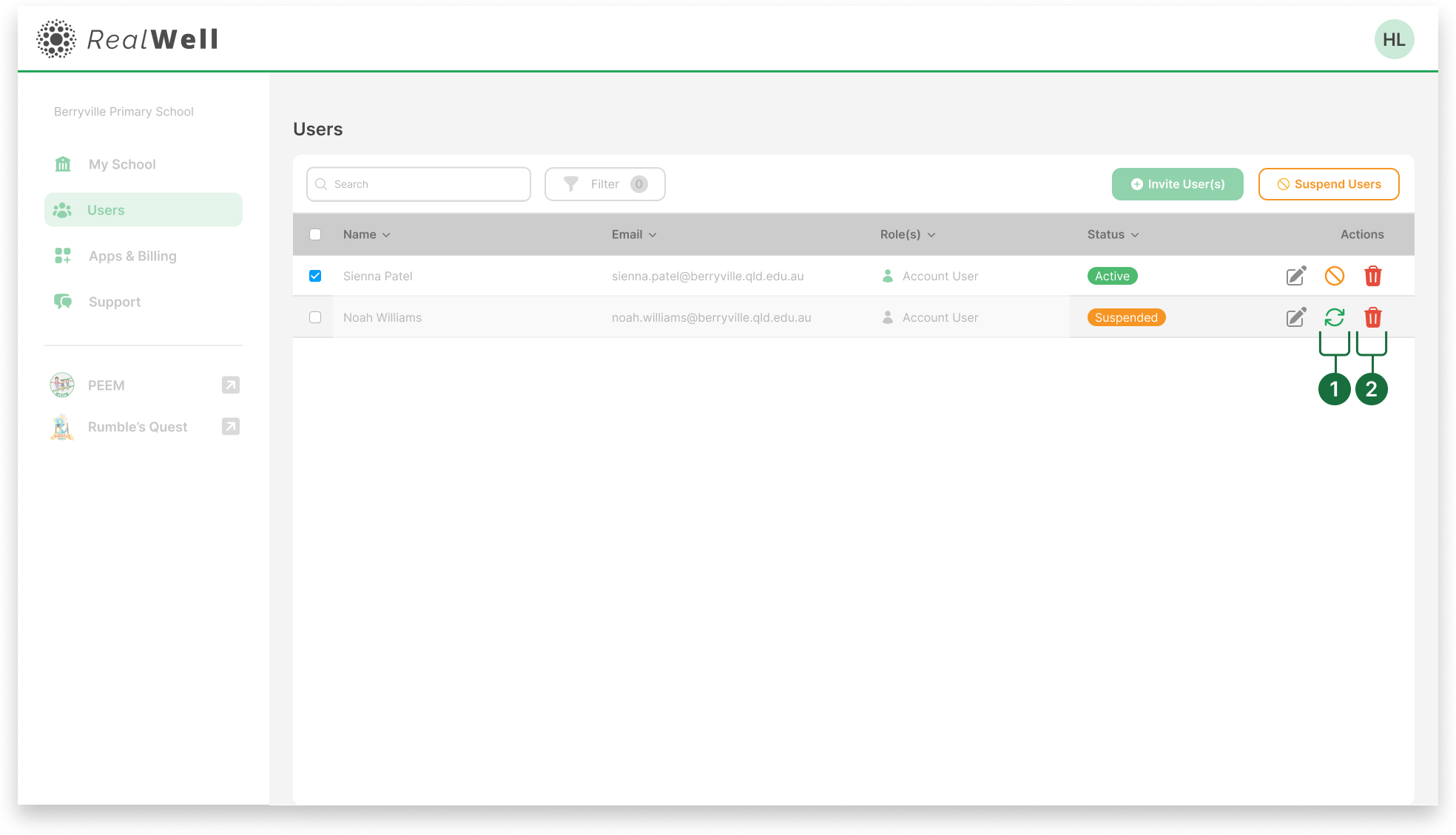
 Suspend: Removes the user’s access to the platform.
 Activate: Restores access to the platform for a user who is currently suspended.
 Delete: Permanently removes a user from your organisation.
Steps: Suspend a User
To suspend an active user:
On the Manage Users screen, find the user you want to suspend.
Click the Suspend icon
.A confirmation modal will appear. Review the warning and click Confirm to proceed.
Note: Suspended users retain their data and can be reactivated later.
Steps: Bulk Suspend Users
Tick the checkbox of the left next to each user you want to suspend.
Once one or more users are selected, the Suspend Users button becomes active.
Click it to suspend all selected users in a single action.A confirmation modal will appear. Review the warning and click Confirm to proceed.
Steps: Reactivate a User
To reactivate a suspended user:
Locate the user with the Suspended status.
Click the Activate icon
The user’s status will immediately return to Active.
Steps: Delete a User
To delete a user permanently:
Click the Delete icon
next to the user.A confirmation modal will appear.
Click Confirm to permanently remove the user.

Deleting a user is irreversible. Use this option only when you're certain.