
Account Access Requests
Click to view full screen

When a user tries to register an organisation that’s already set up in RealWell, they’re given the option to request access instead. Their request must be approved by an Account Admin or Recovery Admin.
Once submitted, the user’s account appears on the Users page with a “Pending Review” status and a  warning icon in the Actions column.

Only approve access if you personally know and trust the requester. Approving gives them access to sensitive data within your organisation’s account.
Review Access Request Action
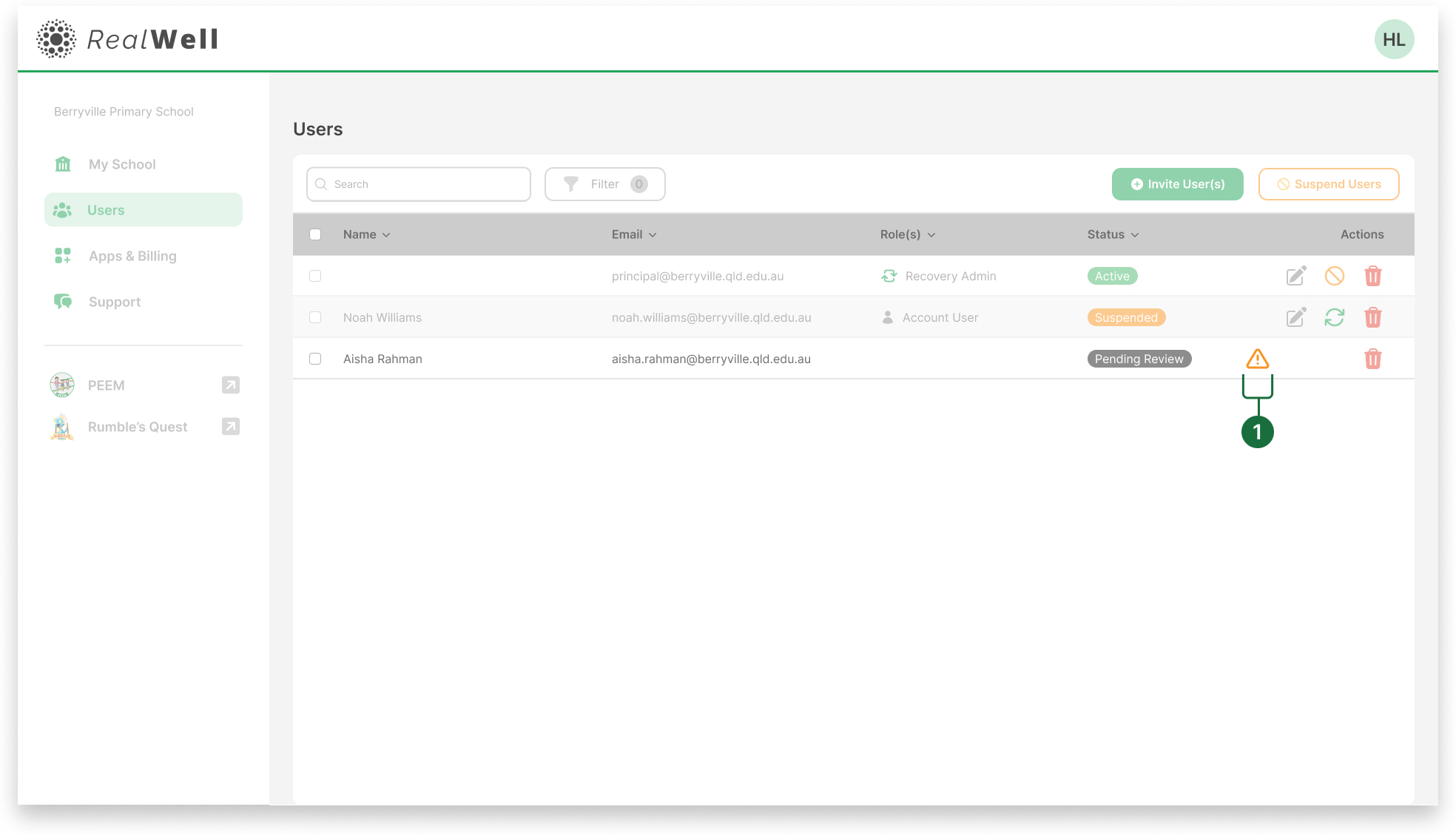
- Review Account Access Request: Appears when a new user has requested access.
Steps for reviewing access
Click on the
action button (Review User Access Request) next to the user requesting access to start the process.
The following modal will open.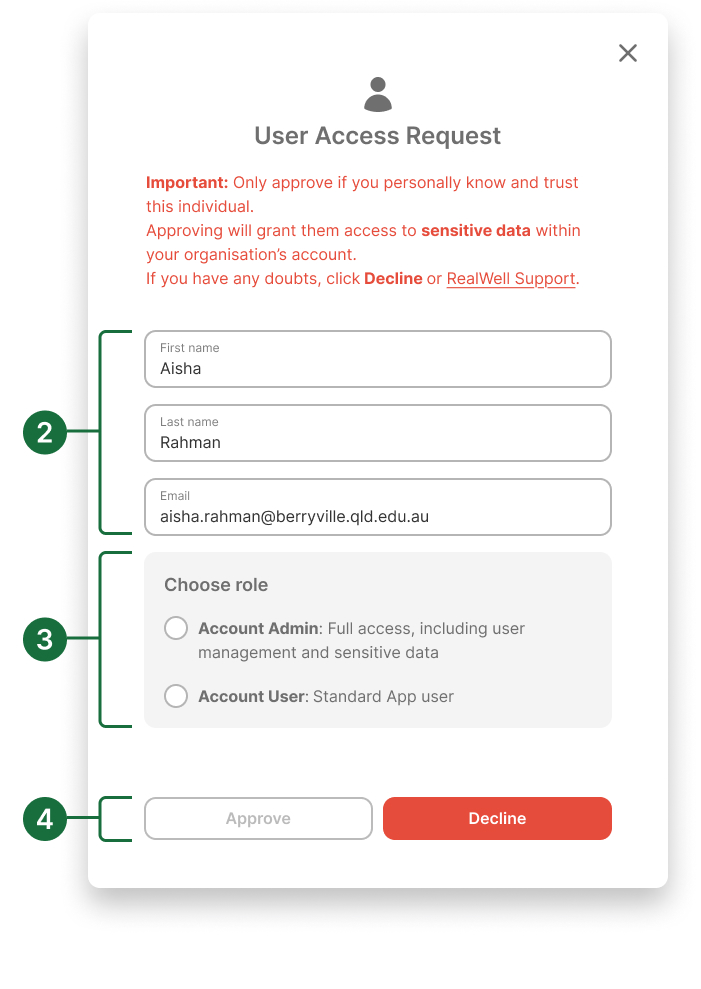
Check the requester’s details, confirm the user's:
First name
Last name
Email address
If anything looks incorrect or unexpected, do not approve access.
Choose a role: Select a role for the user:
Account Admin: Full access, including user management and sensitive data
Account User: Standard platform access including sensitive data.
You must choose a role before you can proceed.
Approve or decline the request
Click Approve to grant access and apply the selected role.
Click Decline if you do not recognise the requester or wish to deny access.
If you're unsure, click Decline or contact RealWell Support