Account Admin Dashboard
Click to view full screen

The Account Admin Dashboard brings together the tools and information you need to manage your organisation’s account, users, apps, and billing.
Navigation
The Navigation panel on the left provides access to the main areas of your account and to support
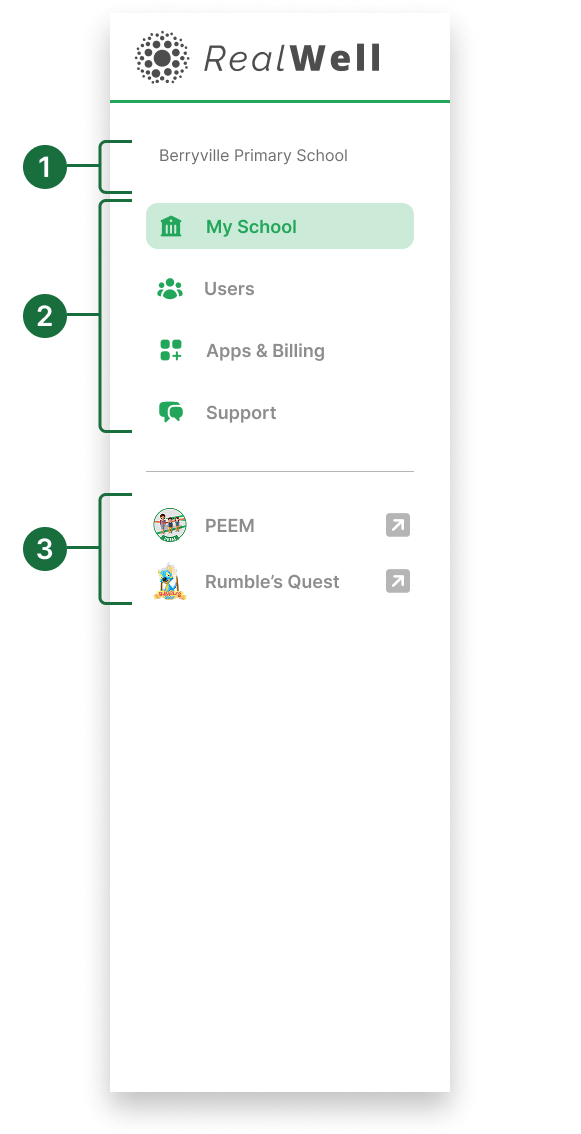
Organisation name: Displays your organisation or school name.
Primary navigation: Use these links to access and manage key areas of the platform, including My School / My Agency, Users, Apps & Billing, and access support documents and help.
Active apps: Lists the licensed apps available for use within your organisation.
Dashboard
The dashboard shows a snapshot of your organisation’s details with direct links to manage users, apps, billing, and security.
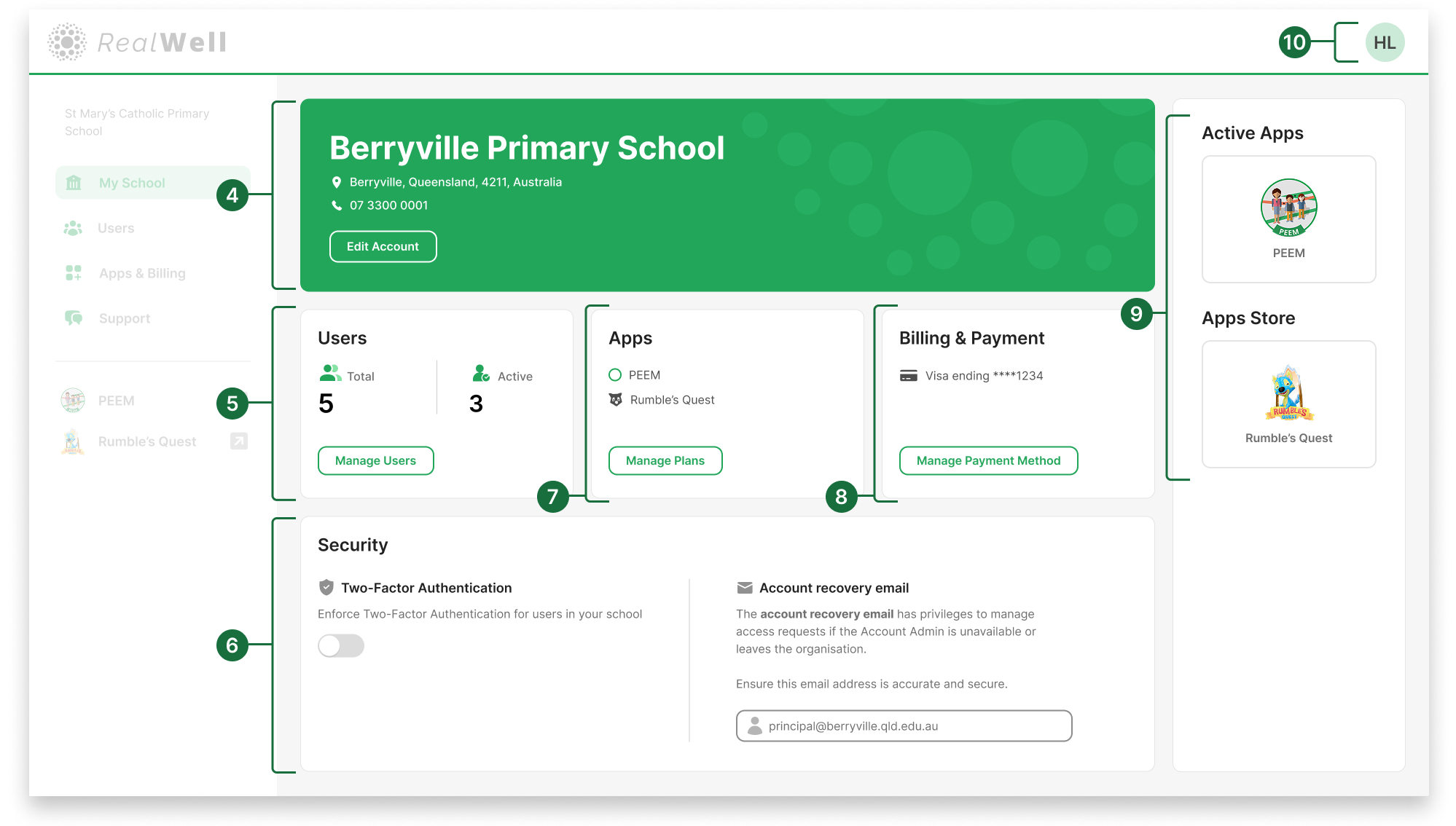
Organisation profile: Displays your organisation or school details.
Users overview: Shows total and active users. Click Manage users to view, invite, update, or remove users.
Security:
Account Admins can enforce two-factor authentication for all users within their account.
The Account recovery email is used if the Account Admin is unavailable, and can be updated via the Users page.
Apps: Displays your licensed apps. Click Manage Plans to review and manage app plans.
Billing & payment: Displays your current payment method. Click Manage Payment Method to view and manage payment methods.
App store (right): Displays RealWell tools, active and available for licensing.
User Profile dropdown: Click your initials to access your profile settings or log out.