
Payment Methods
Click to view full screen

The Payment Methods tab allows you to add, remove, and manage credit cards linked to your organisation. Stored cards are used for app licence payments and renewals.
Payment Methods View
Apps & Billing > Payment Methods
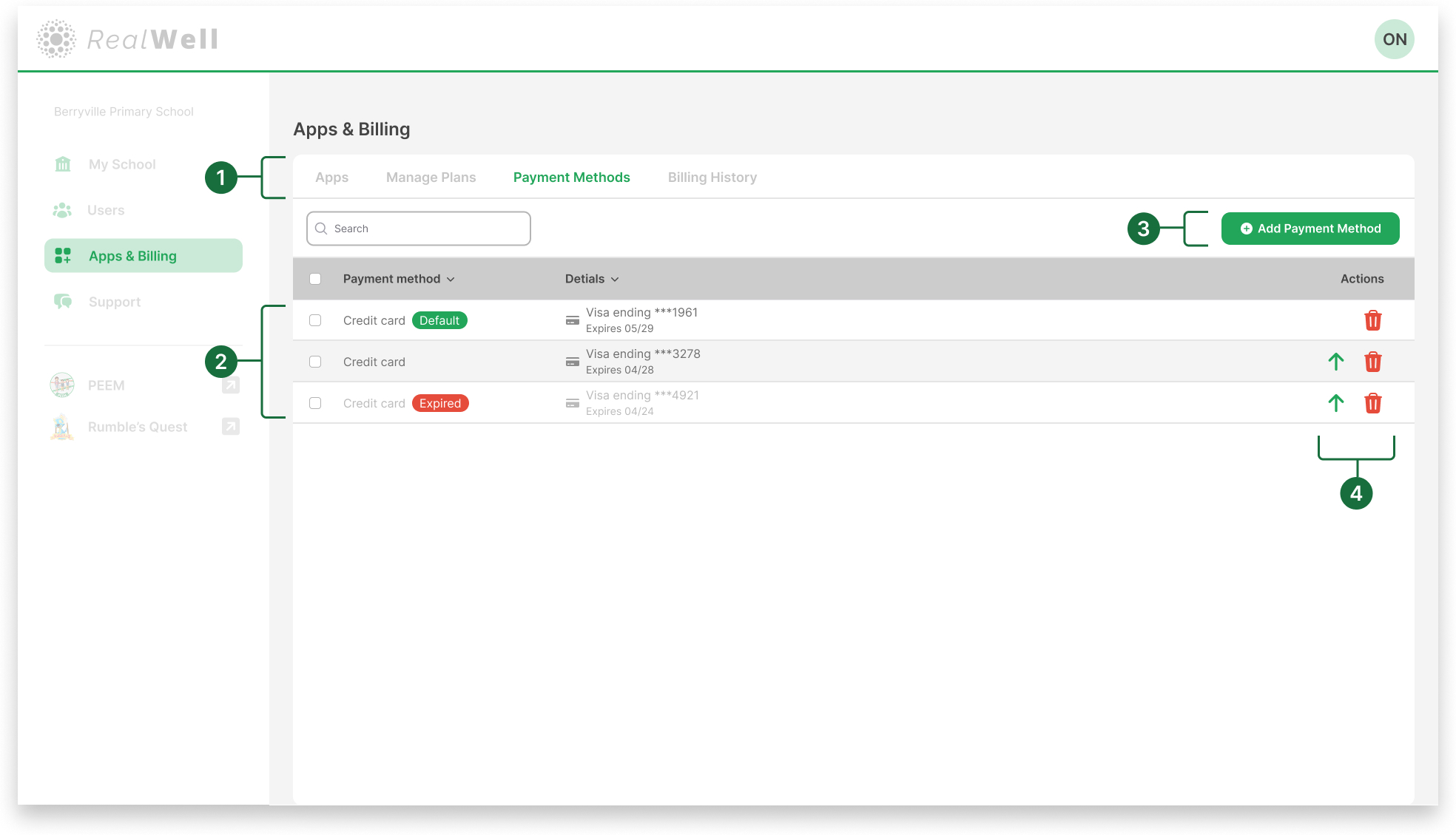
Sub-navigation bar: Located at the top of the Apps & Billing page, this bar provides access to functions for managing apps and billing. In this case, the Payment Methods tab is selected.
Stored payment methods: Shows all credit cards currently linked to your organisation. Each entry displays the card type, masked number, expiry date, and status (e.g. Default, Expired).
Add Payment Method: Opens the window to add a new credit card.
Actions: Manage existing cards:
Set default: Mark a card as the default for payments.
Delete: Remove a card from your account.
Add a Credit Card
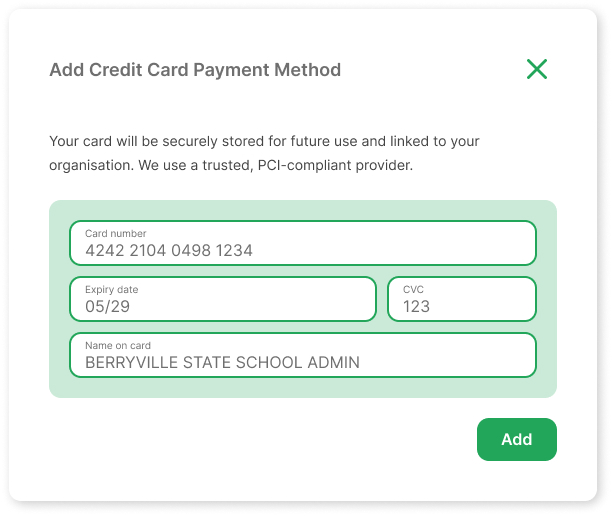
Click Add Payment Method on the dashboard view
Enter your credit card details (number, expiry date, CVC, and name).
Check the information is correct.
Select Add to save the card to your organisation.
Make a Card the Default Payment Method
Select the green up arrow icon in the Actions column, next to the card you want to make default.
A confirmation window appears showing the selected card details.
Select Yes to confirm, or Cancel to keep your current default.
Delete a Payment Method
Select the red bin icon in the Actions column next to the card you want to remove.
A confirmation window will appear showing the card details.
Select Delete to remove the card, or Cancel to keep it.