
Manage Plans - Increase Licence Quota
Click to view full screen

The Manage Plans tab allows you to view all active app licences for your organisation, adjust licence quotas, and manage renewals.
This guide explains how to increase the licence quota for an active plan (example: Rumble’s Quest).
Manage Plans
Apps & Billing > Manage Plans

Sub-navigation bar: Located at the top of the Apps & Billing page, this bar provides access to functions for managing apps and billing. In this case, the Manage Plans tab is selected.
Active plans list: Shows a list of all active app licences, including status, quota, plan period, and expiry date (examples: PEEM and Rumble’s Quest).
Edit plan: Select the pencil icon beside an active plan to adjust the plan’s licence quota.
Increase Plan Quota
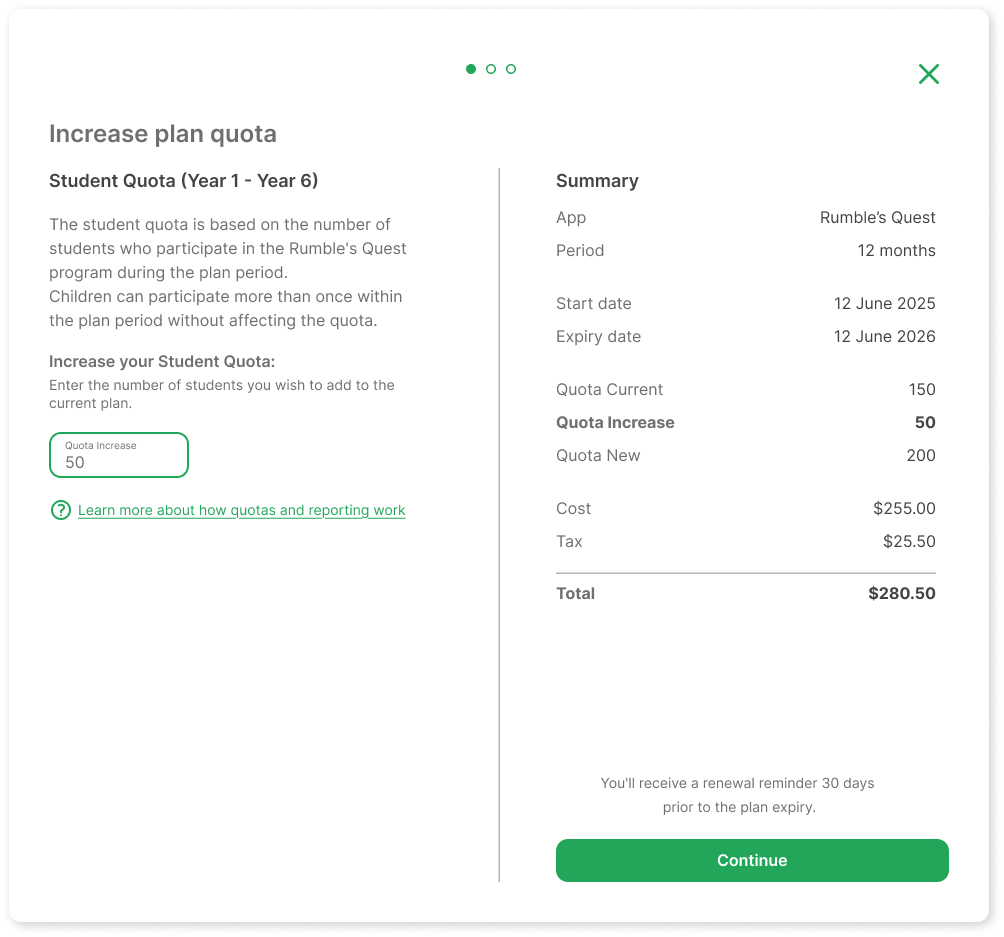
Quota increase field: Enter how many additional participants you want to add to the current plan.
In this example, the quota increase is set to 50 students for the Rumble’s Quest app.
Summary panel: Review updated licence details, including:
Current quota
Quota increase
New total quota
Cost and tax
Continue: Select to proceed once you’ve entered the increase and reviewed the summary.
After entering your quota increase and selecting Continue, you’ll follow the same Billing and Payment and Review & Payment steps as described in Activate Licence Plan.
Renew a Plan
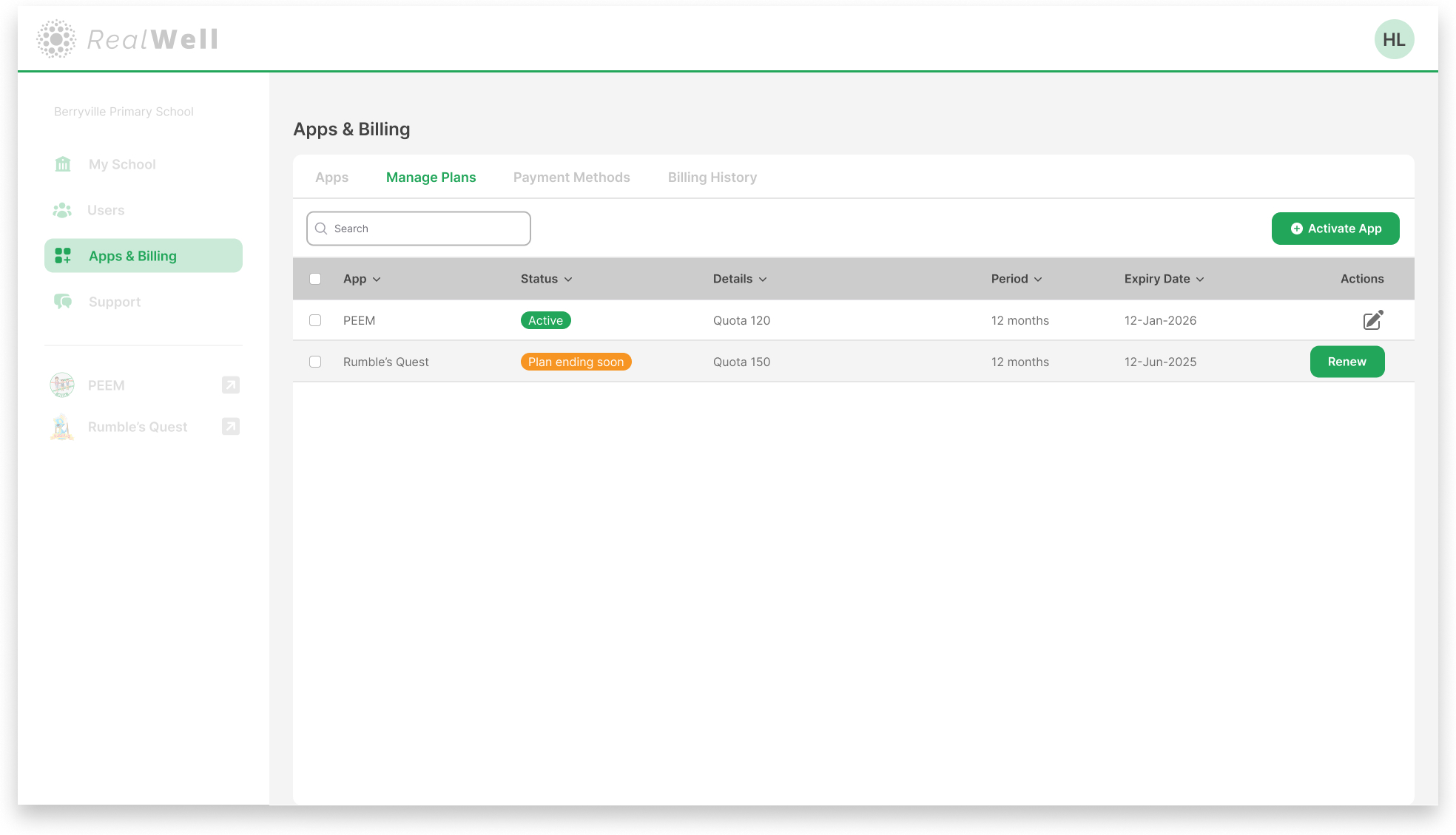
When a plan is nearing expiry, you’ll see a Plan ending soon status in the Manage Plans tab.
A renewal reminder email is sent 30 days before your plan ends. The email link takes you directly to the Manage Plans tab to begin renewal.
Select Renew from the Actions column.
Follow the same three-step renewal flow (Quota → Billing and Payment → Review & Payment).
Confirm your renewal to extend the plan.