
Your Profile
Click to view full screen…

The user dropdown in the top-right corner gives you access to your personal settings. From here, you can update your details, reset your password, or manage two-factor authentication.
User dropdown menu
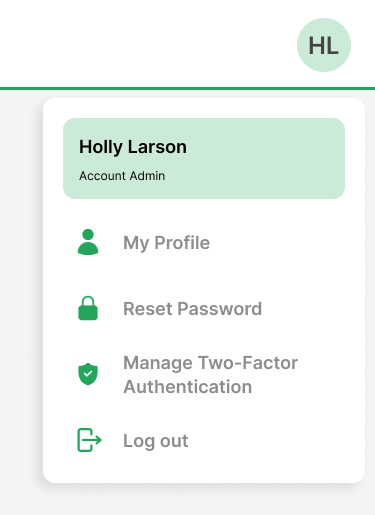
User name and Role panel: Shows your name and assigned role.
Menu options
My Profile: Update your personal details
Reset Password: Change your login password
Manage Two-Factor Authentication: Add extra protection to your account
Log out: Securely end your session. This also logs you out of any other RealWell tools you're using.
See below for instructions on updating your profile details and managing your security settings.
My Profile
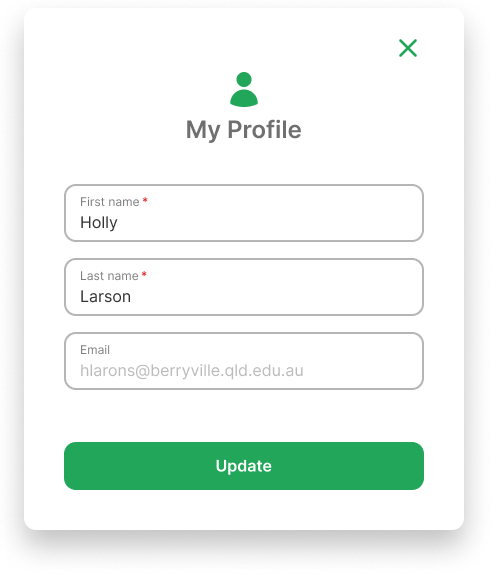
Profile information: Update your first name or last name.
Update button: Click Update to save your changes.
Reset password
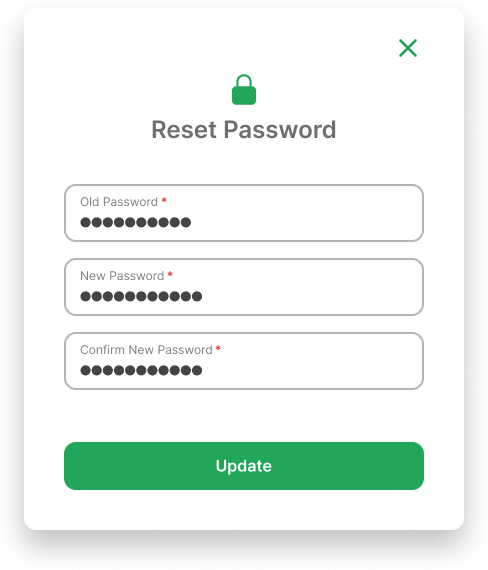
Password fields
Old password: Enter your current password
New password: Must meet minimum security requirements
Confirm new password: Must match the new password exactly
Update button: Click Update to apply your new password.
Password Requirements
When creating or updating a password, it must meet the following requirements:
Length: 10–64 characters
At least one uppercase letter (A–Z)
At least one lowercase letter (a–z)
At least one number (0–9)
At least one symbol (e.g. ! @ # $ % ^ & *)
Enable Two-Factor Authentication (2FA) for Your Account
Add an extra layer of security to your account.