Enable Two-Factor Authentication
Click to view full screen

Enable Two-Factor Authentication (2FA) for Your Account
Two-Factor Authentication (2FA) adds an extra layer of security to your account by requiring a second step of verification when signing in.
Once enabled, you'll need your email and password plus a temporary verification code from an authentication app to log in.
Step 1 – Open the Two-Factor Authentication Menu
Click your profile initials in the top-right corner.
From the dropdown menu, select Manage Two-Factor Authentication.
This will open a modal where you can begin the Two-Factor Authentication (2FA) setup process.
Step 2 – Set Up 2FA
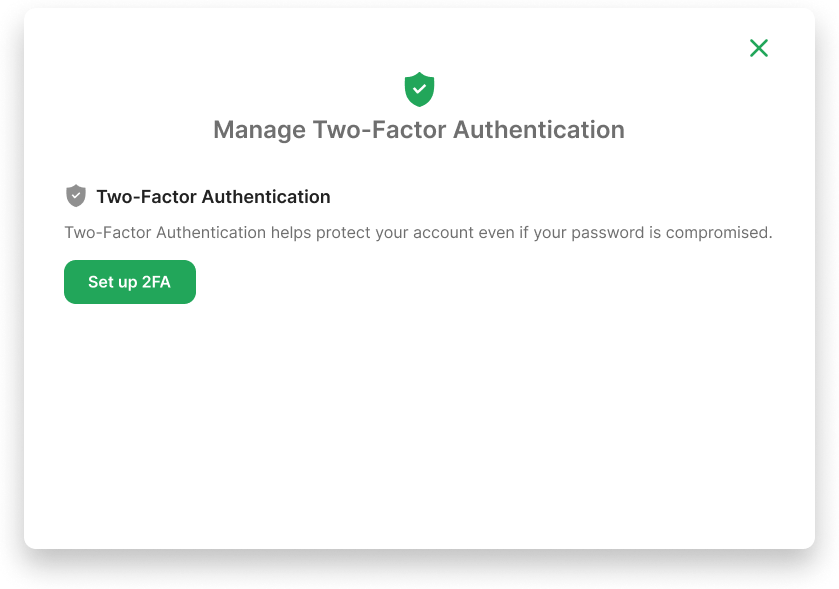
Click Set up 2FA.
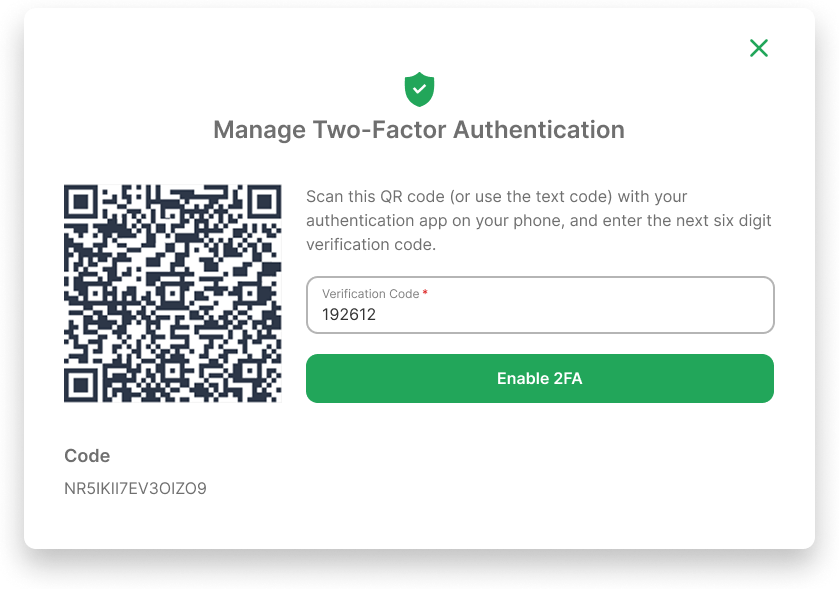
Scan the displayed QR code using your authenticator app (e.g. Google Authenticator or Microsoft Authenticator).
Enter the 6-digit code generated by your app into the verification code field.
Click Enable 2FA to complete setup.
Step 3 – Copy Your Recovery Codes
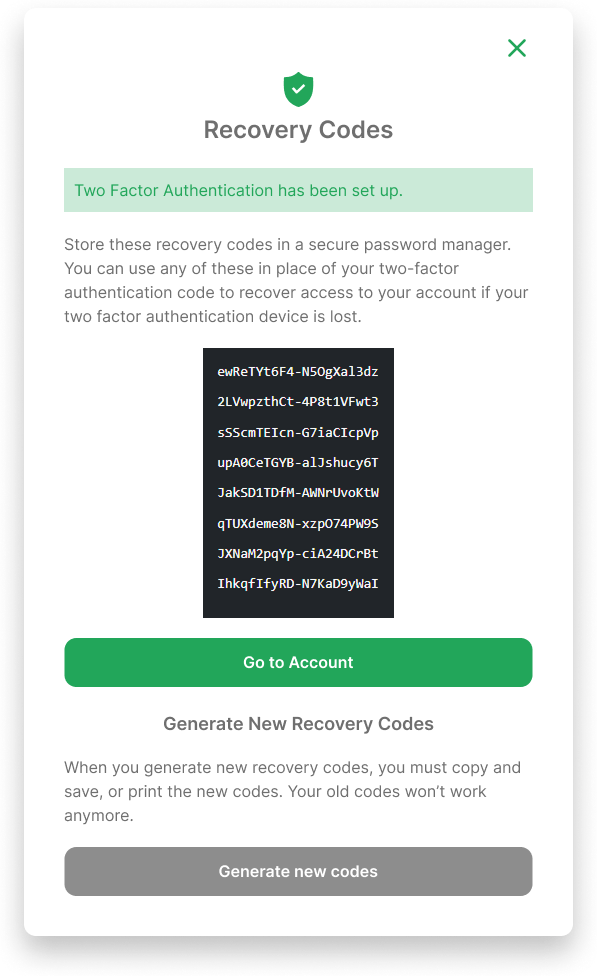
Once 2FA is enabled, a set of Recovery Codes will be displayed.
These codes can be used if you lose access to your authenticator app.
Copy and store these codes securely in a password manager.
You may use any code once to regain access.

Each recovery code can only be used one time.
If you choose to generate new recovery codes, the old ones will no longer work.