5 - Play The Game
Click to view full screen…

Once your Quest Block is set up and children have been added to the system, it's time to play. This guide covers what happens on the device, from entering the Quest Key through to completing the game.
Make sure you've prepared your environment, devices, and children before starting. See Getting Ready to Rumble for the full preparation checklist.
Entering the Quest Key
When the game launches, children are prompted to enter the Quest Key. This is the unique code generated when you created your Quest Block, and it links the child's game session to the correct data collection round.
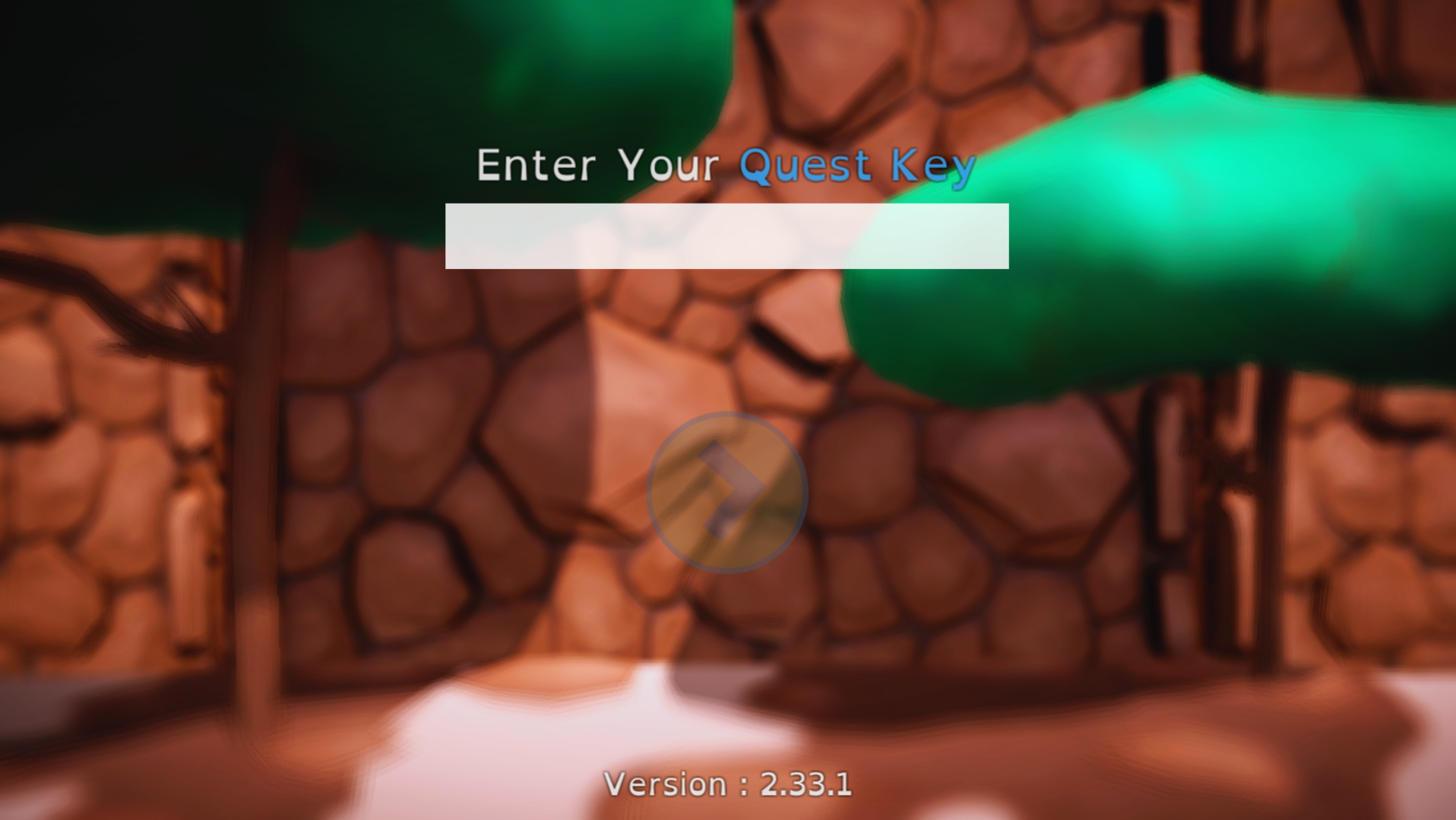
Type the Quest Key into the field and click the arrow button to continue. If the key is invalid, the game won't allow the child to proceed. Double-check the key and try again.
Setting Up the Game Profile
After entering the Quest Key, the child fills out their game profile:
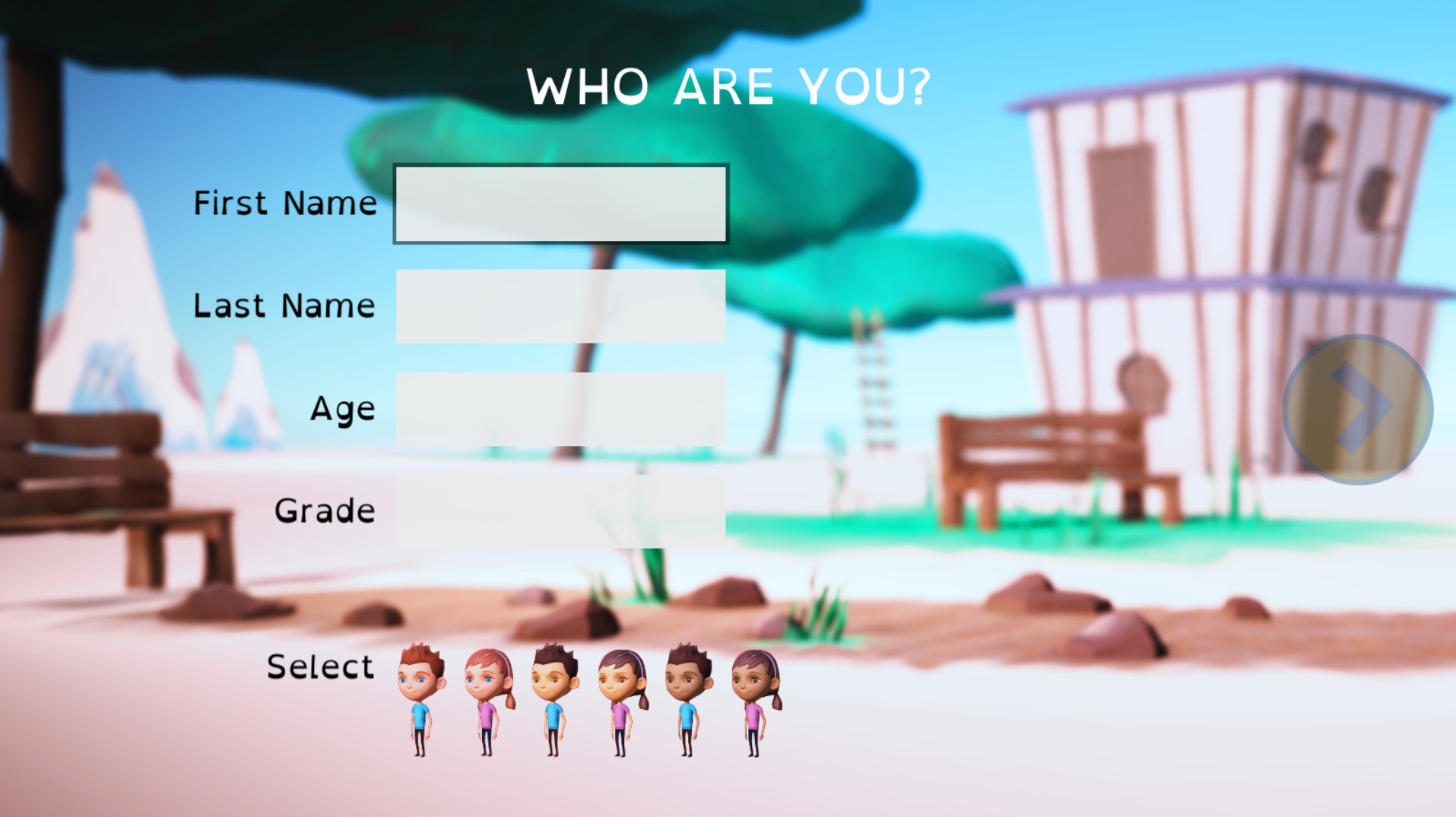
First Name and Last Name
Age
Grade
Avatar — choose from the characters at the bottom of the screen
Encourage children to enter their name as accurately as possible. This information is used during alignment to match their game submission to their official profile, so "Matt" instead of "Matthew" can make that process harder.
Once the profile is complete, the game begins.
During the Game
Rumble's Quest is self-guided, so children can play through at their own pace. Staff should supervise the session but avoid intervening unless a child needs help.
Pausing and Resuming
If a child needs a break, press the Escape key on a PC or Mac, or tap the Pause button on iPad. Click Resume to continue where they left off.
Quitting Mid-Game
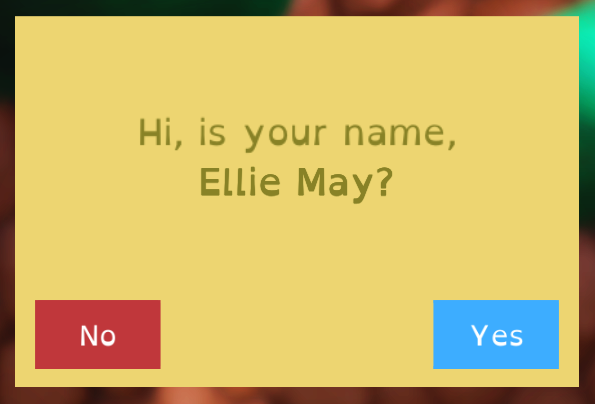
If a child quits before finishing, their progress is saved on the device. When the game is next launched on that device, the child will be prompted to confirm their identity:
Click Yes to continue as that child
Click No to start a new session (the previous progress is cleared)
If the child confirms their identity, they can choose to Keep Playing from where they left off, or Start Over from the beginning.
Note that only one session is saved per device at a time. If another child needs to use the same device, they will be shown the previous child's name and must click No to start their own session, which clears the previous progress. Where possible, have the original child finish their session before another child uses the same device.
Finishing the Game
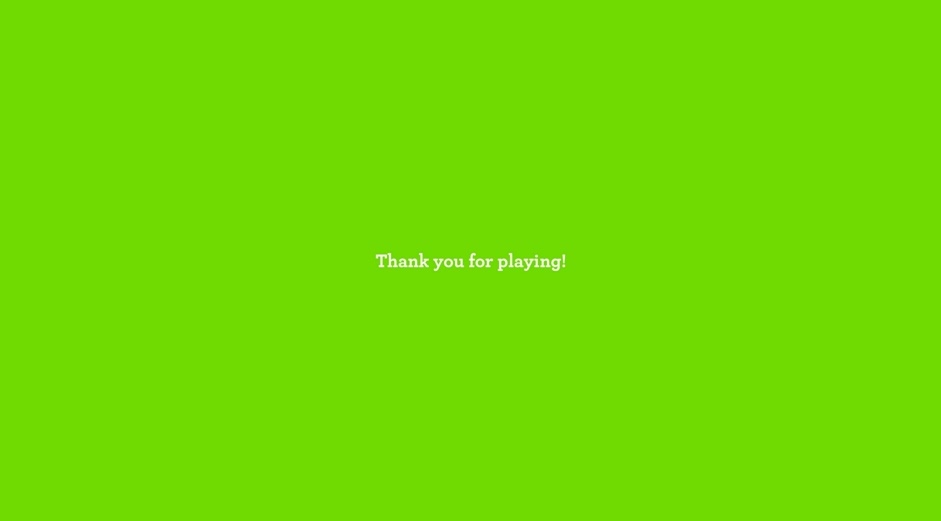
When the game is complete, wait for the green "Thank you for playing" screen. This confirms the child's data has been saved and sent to the server.
Do not close the game before this screen appears.
Troubleshooting
Red "Lost Internet Connection" Screen
If the connection is lost, close the game and relaunch it.
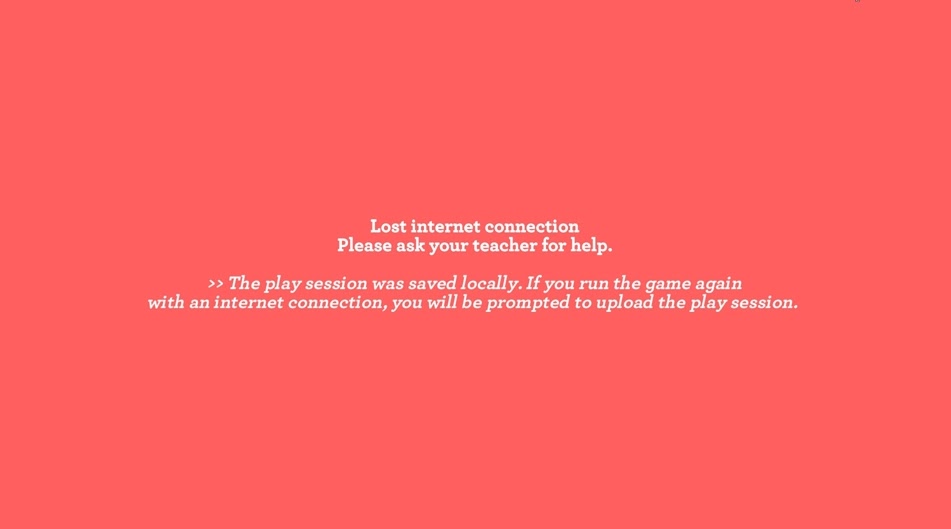
A yellow Submit Results button will appear at the bottom left of the screen. Click it to send the data once the connection is restored.