
Edit Child
Click to view full screen…

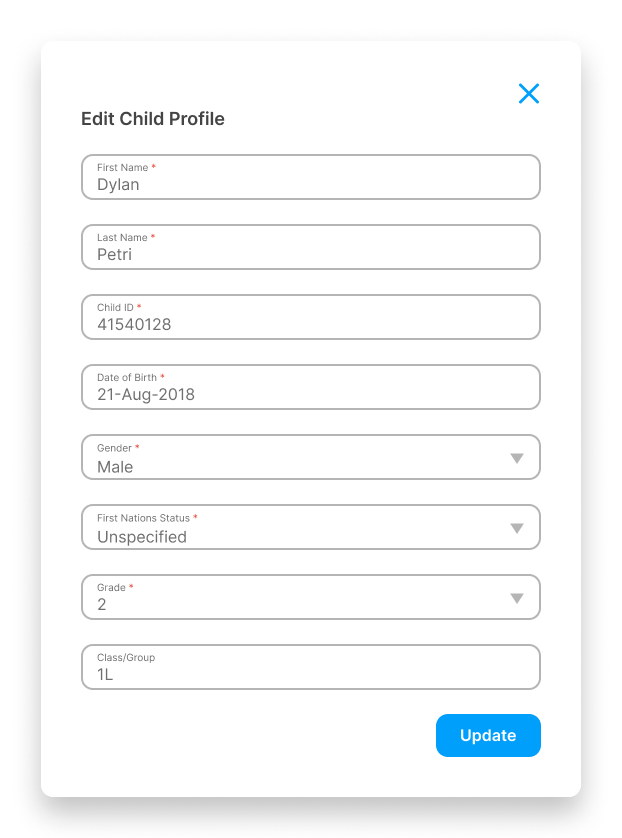
The Edit Child panel lets you update a child's details at any time. Changes take effect immediately and apply to how the child appears in reports going forward.
To open the panel, click the Edit icon (pencil) on the child's row in the Children table.
Fields
First Name (required)
Last Name (required)
Child ID (required) The unique identifier used to match records during bulk imports. If you change a Child ID, the system will no longer recognise the child as the same record on the next import, which will create a duplicate. Only change this if you're correcting an error.
Date of Birth (required)
Gender (required) Male, Female, or Non-binary.
First Nations Status (required) Yes, No, or Unspecified.
Grade (required)
Class/Group (optional)
Make your changes and click Update to save.
Good to Know
Historical submissions are not affected. Editing a child's details updates their current record. Previous game submissions keep the Grade and Class/Group that were in place at the time of play, while other details (such as name and date of birth) update across all records.
Children cannot be deleted. If a child has left your school or organisation, their record will remain in the system. Over time, you can use the filters on the Children page to focus on your current cohort.